

Standard Switches
A Standard Switch is a FreeBSD bridge that Sylve creates and manages. Use one when you want Sylve; not rc.conf or another configuration system; to own the bridge, its selected physical ports, host addresses, VLAN handling, and lifecycle.
If an upstream router or gateway is connected through a physical NIC on the node, add that NIC to the switch as a Port. Put the node’s address configuration on the Standard Switch itself: either select or type static addresses and gateways, or enable DHCP and let the bridge obtain IPv4 configuration from the upstream network. The physical port remains unaddressed as a bridge member.
Sylve does not rewrite rc.conf. Keep the selected physical port’s rc configuration at layer 2 only, for example ifconfig_igb0="up", or omit it. Remove DHCP, static addresses, aliases, and accept_rtadv from that port. Otherwise FreeBSD can start a second DHCP or SLAAC client on the bridge member after a link event, competing with the bridge for addresses and default routes. Before create or update, Sylve reports detected effective rc.conf conflicts and requires explicit confirmation. Confirmation does not modify the external configuration.
The same confirmation reports when a selected port is configured with addm on another cloned bridge or is currently attached to another bridge. These checks apply only while managing Standard Switches. Register an externally managed rc.conf bridge as a Manual Switch instead; Sylve does not rewrite or reconcile Manual Switch configuration.
Do not configure the Sylve-generated bridge in rc.conf either.
Address objects first
Section titled “Address objects first”For a dual-stack LAN with a portless bridge, create these one-entry objects before opening the switch modal:
| Object | Type | Example value | Used for |
|---|---|---|---|
LAN Network |
Network | 192.168.67.1/24 |
The IPv4 address and prefix assigned to the bridge. |
LAN Gateway |
Host | 192.168.67.1 |
The IPv4 next-hop gateway. |
LAN IPv6 Network |
Network | fd12:6767::1/64 |
The IPv6 address and prefix assigned to the bridge. |
LAN IPv6 Gateway |
Host | fd12:6767::1 |
The IPv6 next-hop gateway. |
LAN Switch MAC |
MAC | 02:00:00:00:67:01 |
The stable link-layer identity of a portless bridge. |
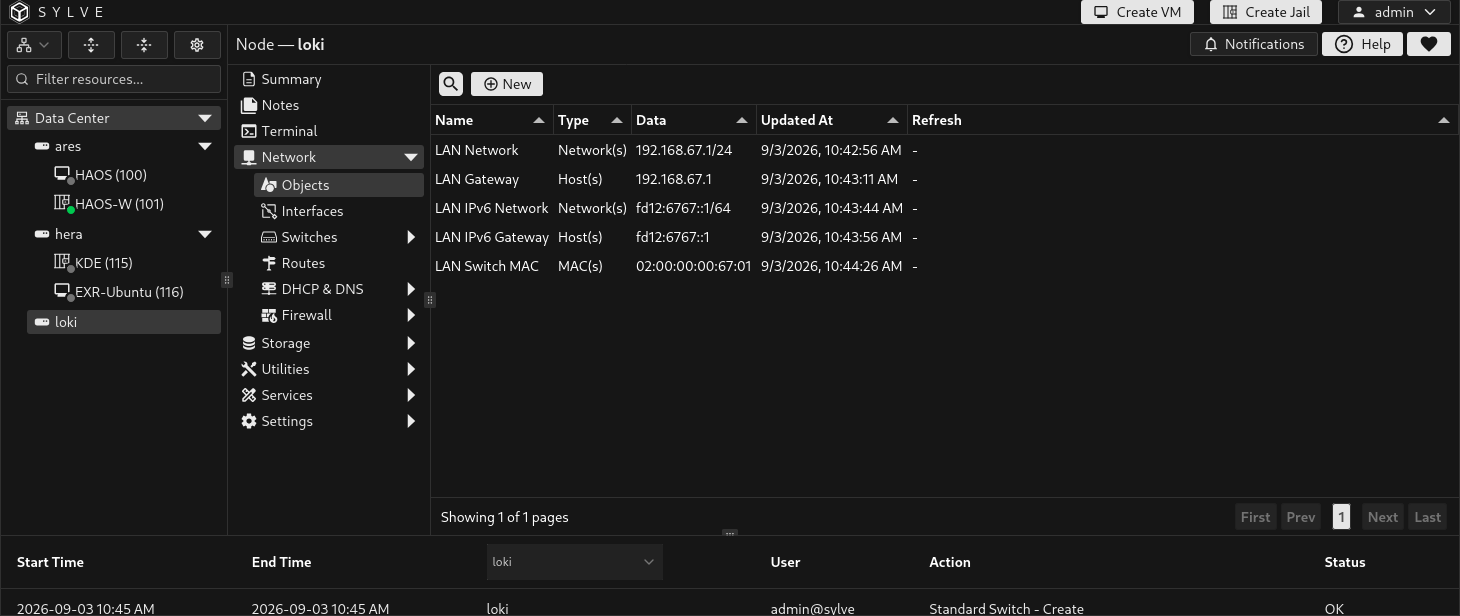
Use a Network object for the address on the bridge, expressed in CIDR notation; not the bare subnet base such as 10.20.30.0/24. Use a Host object for each gateway. The switch form also accepts a typed CIDR for Network and a typed IP address for Gateway, but objects are preferred: they provide one reusable, inspectable source of truth for addresses used elsewhere in Sylve.
Network objects may contain multiple host CIDRs, provided every entry belongs to the selected IP family. Sylve assigns all entries. For example, an IPv6 Network object can contain both fd12:6767::10/64 (ULA) and 2001:db8:6767::10/64 (documentation GUA prefix; replace it with your routed prefix).
Use IPv4 Addresses and IPv6 Addresses to select multiple Network objects, enter manual CIDRs, or mix both in the same field. Type each CIDR and press Enter; select an existing entry again to remove it. Object selections remain references: editing an object updates the switches that use it, and an object cannot be deleted while it is used. Sylve saves and reapplies the complete address list at startup, including on a configured Host VLAN interface. Each family supports up to 64 distinct addresses. DHCP and SLAAC remain alternatives to static addressing for their respective families.
Each family still has one gateway and default-route setting; additional addresses do not need separate gateways. The first CIDR remains the primary address for the existing route configuration. Duplicate addresses with the same prefix length are assigned only once; assigning the same address with different prefix lengths is rejected.
The UI requires an explicit bridge MAC source. A bridge with physical ports can inherit the MAC of one selected port. A portless bridge uses a single-entry MAC object. The address must be a valid non-zero unicast MAC. A locally administered address whose first octet is 02, such as the example above, is appropriate when it is unique on your network.
A portless switch created by bootstrap already has a persisted MAC object selected. Keep that object when attaching a NIC to preserve the switch’s identity.
Create the switch
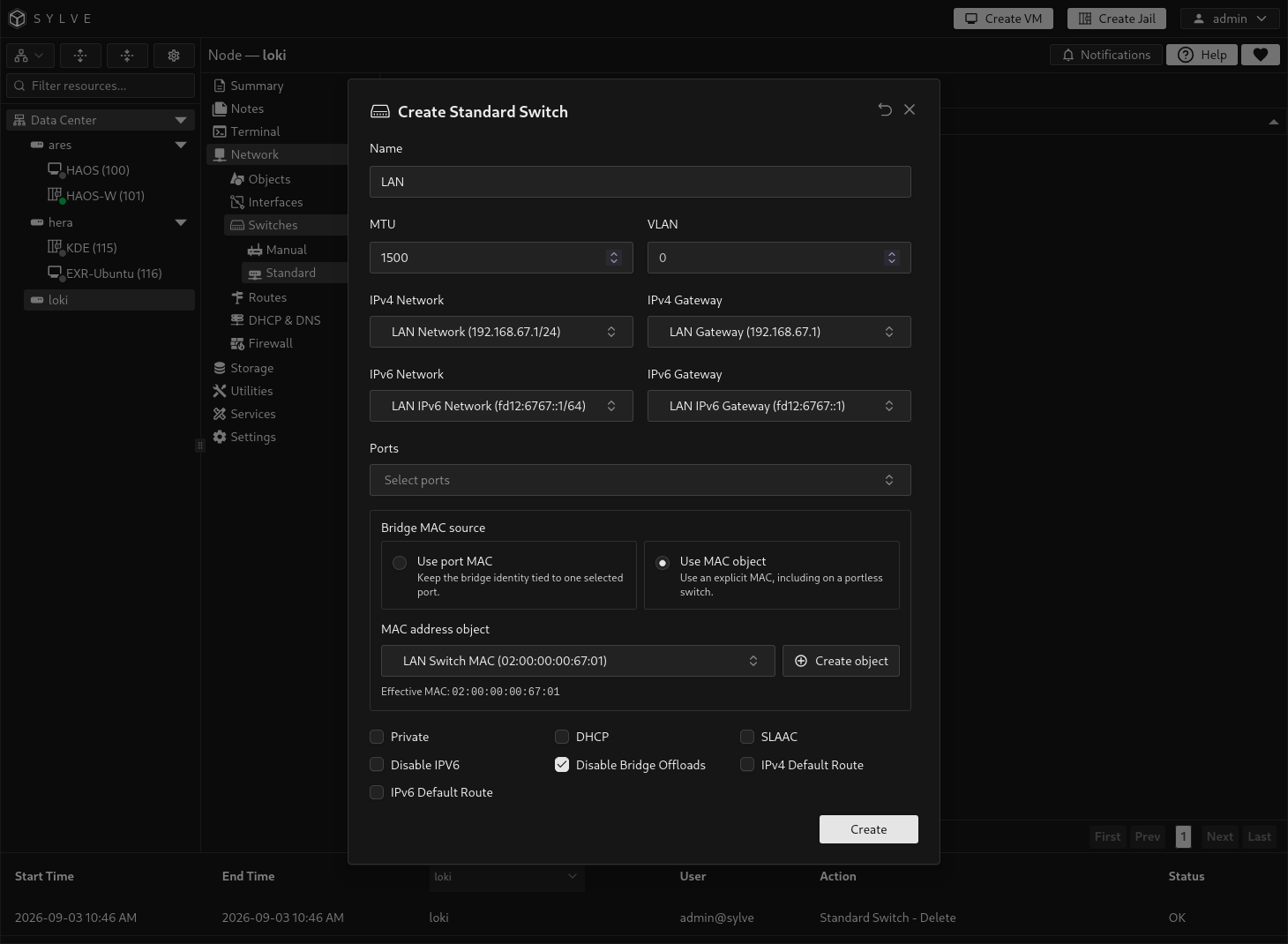
Section titled “Create the switch”Open Network → Switches → Standard and select New. The modal creates the bridge and applies its configuration. This example creates an isolated LAN bridge with object-backed IPv4 and IPv6 addressing and no physical ports.
Fields
Section titled “Fields”| Field | Meaning |
|---|---|
| Name | A unique Sylve switch name. Sylve derives a bridge name from it; do not rely on that generated bridge name as a user-facing identifier. |
| MTU | The bridge MTU. Leave the default unless every link in the path is configured for a different value. |
| VLAN | Optional VLAN tag applied when Sylve creates member interfaces for the selected ports. |
| IPv4 / IPv6 Addresses | Select multiple Network objects or enter CIDRs directly. All same-family entries from each selected object are assigned. |
| IPv4 / IPv6 Gateway | The next-hop router, selected from a Host object or typed directly. A gateway requires the corresponding network/address. |
| Ports | Interfaces that Sylve will attach to the bridge. Sylve clears all IPv4 and IPv6 addresses from each selected port before attachment. Configure the address on the bridge instead. |
| Bridge MAC source | Select Use port MAC and one of the switch ports, or select Use MAC object and a single-entry MAC object. The form displays the effective MAC before saving. |
The bridge MAC is persistent configuration, not a cosmetic label. Keeping it stable avoids the bridge changing identity when ports are reordered, link state changes, or a portless switch is recreated. If you use Use port MAC, the source must remain one of the switch’s selected ports. Use a MAC object when the identity must remain independent of physical hardware.
Checkboxes
Section titled “Checkboxes”| Checkbox | Effect |
|---|---|
| Private | Prevents traffic between guests attached to the same switch while retaining communication with physical interfaces attached to it. |
| DHCP | Makes the bridge a DHCP client for IPv4. Sylve requests an IPv4 address from an external DHCP server and clears static IPv4 network/gateway selections. It does not start a DHCP server. Whether DHCP may supply the node’s default route is controlled separately. |
| SLAAC | Makes the bridge an IPv6 SLAAC client. Sylve solicits and accepts router advertisements for address configuration and clears static IPv6 selections. It does not provide router advertisements or act as a DHCPv6 server. Whether the router enters FreeBSD’s Default Router List is controlled separately. |
| Disable IPv6 | Disables IPv6 on the bridge and turns off SLAAC. Use only when IPv6 truly must not be present. |
| Disable Bridge Offloads | Disables bridge-sensitive TOE, TX checksum, TSO, LRO, and MEXTPG capabilities on selected ports before bridge attachment. This is enabled by default and recommended: it avoids link flaps while VM tap and jail epair ports come and go. Turning it off stops enforcement; it does not re-enable capabilities already disabled. |
| IPv4 Default Route | Makes this switch the node’s IPv4 default-route owner. With static addressing, Sylve installs the configured IPv4 gateway. With DHCP, the label becomes Use DHCP Default Route and Sylve accepts DHCP router information; non-owner DHCP switches still obtain addresses but suppress the DHCP router and classless-route options. |
| IPv6 Default Route | Makes this switch the node’s IPv6 default-route owner. With static addressing, Sylve installs the configured IPv6 gateway. With SLAAC, the label becomes Use RA Default Route and Sylve permits advertised routers to enter FreeBSD’s Default Router List; non-owners still configure SLAAC addresses. |
IPv4 and IPv6 ownership are independent: one Standard Switch may own both families, or different switches may own one family each. Sylve permits at most one configured owner per family for newly created or edited switches.
For a non-owner DHCP switch, Sylve starts that bridge’s client with a generated per-interface configuration that ignores only routers and classless-routes. The rest of /etc/dhclient.conf is included, so settings such as DNS, hostname, and requested lease options keep their administrator-defined behavior. On the next switch reconciliation, changes to /etc/dhclient.conf cause the managed client to restart with the updated effective configuration. FreeBSD presents DHCP option 121 as one classless-routes value, so non-owner mode suppresses all routes from that option, not just a default route it may contain; configure any required routes separately in Sylve.
When a SLAAC switch owns the IPv6 default route, Sylve enables FreeBSD’s RFC 6204 W-3 behavior immediately before applying that managed owner and soliciting a router advertisement. Sylve does not enable it unconditionally during startup when there is no managed SLAAC route owner.
Verify and use it
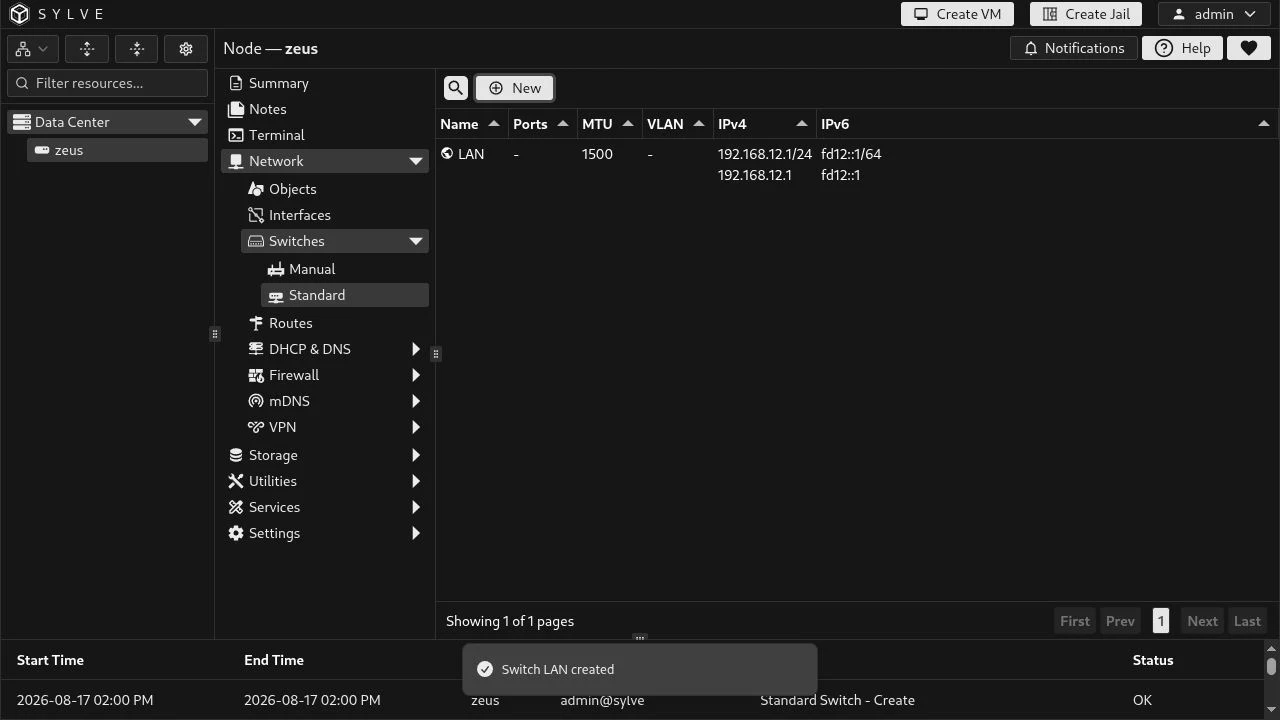
Section titled “Verify and use it”After creation the switch appears in the table with its ports, MTU, VLAN, and assigned IPv4/IPv6 configuration. It can then be selected for jail and VM network interfaces; Sylve attaches each workload’s virtual port to the managed bridge.
Startup recovery and explicit re-apply
Section titled “Startup recovery and explicit re-apply”Sylve makes an initial startup reconciliation and retries failed Standard Switch or Host IP reconciliation up to three more times, waiting 1, 2, and 4 seconds between attempts. Follow-up startup attempts run in the background. Each attempt reads the latest saved switch configuration and reconciles existing bridges in place; it does not recreate a healthy bridge or detach unchanged members.
Bootstrap switch creation uses the same bounded backoff, retrying only failed switch items. Settings, successful switches, and DNS are not replayed during these retries. A failed creation rolls back its database record, so retrying creation is separate from syncing saved switches. If bootstrap still fails, its source document is retained.
Use the running daemon’s CLI to inspect or re-apply configuration without a restart:
sylve switches status --jsonsylve switches sync --jsonThe API equivalents are GET /api/network/switch/sync for status and POST /api/network/switch/sync to re-apply saved Standard Switch and Host IP configuration. Re-apply requires local-administrator access; a second trigger during an active run returns a conflict instead of starting another retry loop. Pending Host IP edits are respected, not rolled back.
Status reports runtime and bootstrap switch reconciliation separately. Each contains the state (not_attempted, running, retrying, converged, or degraded), attempt count, timestamps, and failure details. degraded remains queryable after automatic retries stop. A successful re-apply clears the corresponding failures. Status describes the last run, not continuous network health, and resets when the daemon restarts.
switches sync does not replay the bootstrap document. If a failed bootstrap switch has no saved database record, fix the reported problem and run sylve bootstrap apply to retry its creation.
Retry admission and backoff stop after 15 seconds or daemon cancellation. Existing in-flight OS operations are allowed to finish rather than abandoned while they may still mutate networking; their execution time is not a hard 15-second timeout.