

Console
The Console page opens an interactive shell inside the selected jail. Use it for package management, service administration, configuration changes, and troubleshooting without opening a separate SSH connection to the jail.
Requirements
Section titled “Requirements”The console is available when all of the following are true:
- The jail is in the Active state.
- You are signed in with an administrator account.
- The current node owns the jail’s replication lease, when replication protection applies.
- No restore operation is in progress for the jail.
- The browser can establish the authenticated WebSocket connection used by the console.
If the jail is stopped, the page asks you to start it. If its runtime state cannot be read, the page reports that the console is unavailable.
Open a session
Section titled “Open a session”Select a running jail, then open Console. The page connects automatically and fits the terminal to the available space. Resizing the page also updates the shell’s terminal dimensions.
The toolbar reports and controls the current browser connection:
| Control | Effect |
|---|---|
| Disconnect | Closes this browser’s connection. The page remembers the manual disconnect for this jail until you select Reconnect. |
| Reconnect | Opens a new connection after a manual disconnect or connection failure. |
| Clear | Clears only the terminal content displayed in this browser. It does not undo commands or clear shell history inside the jail. |
| Settings | Opens the local font and colour controls. |
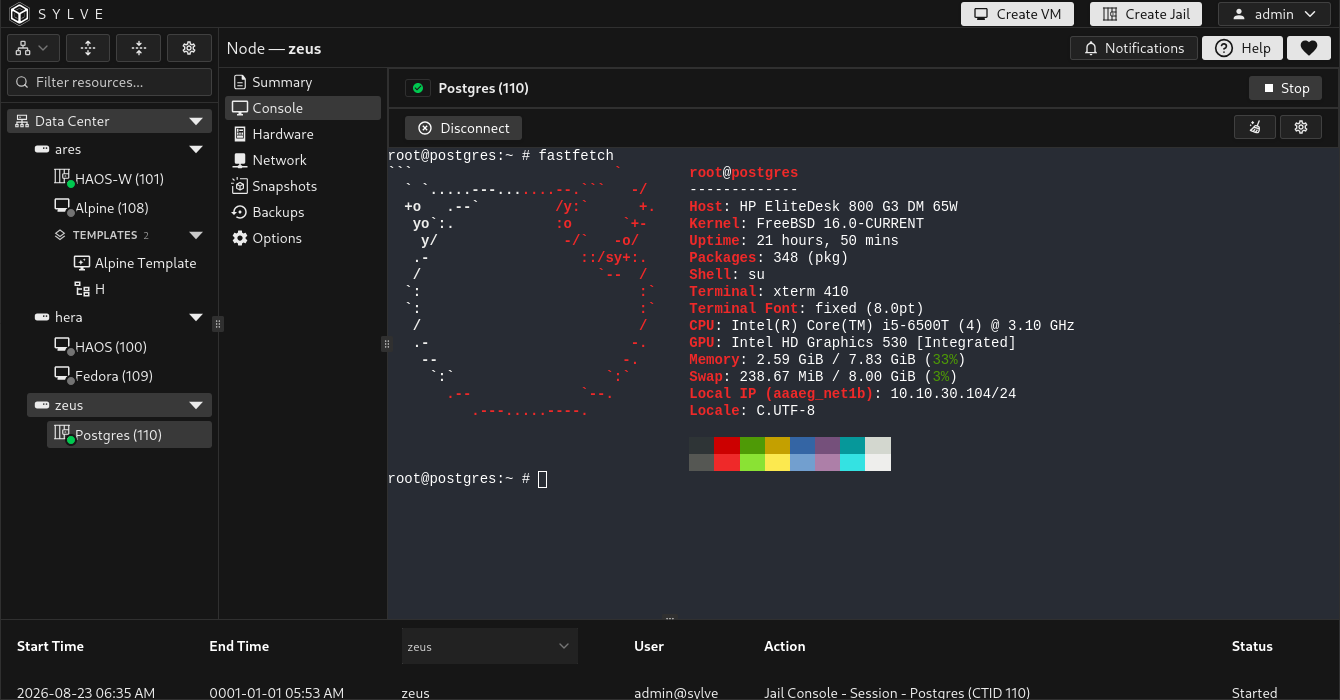
When the last browser disconnects, the server closes the shell session. A later connection starts a fresh login shell. Recently displayed output can be replayed to an administrator joining an existing shared session, but the console is not a persistent session manager.
Adjust the terminal
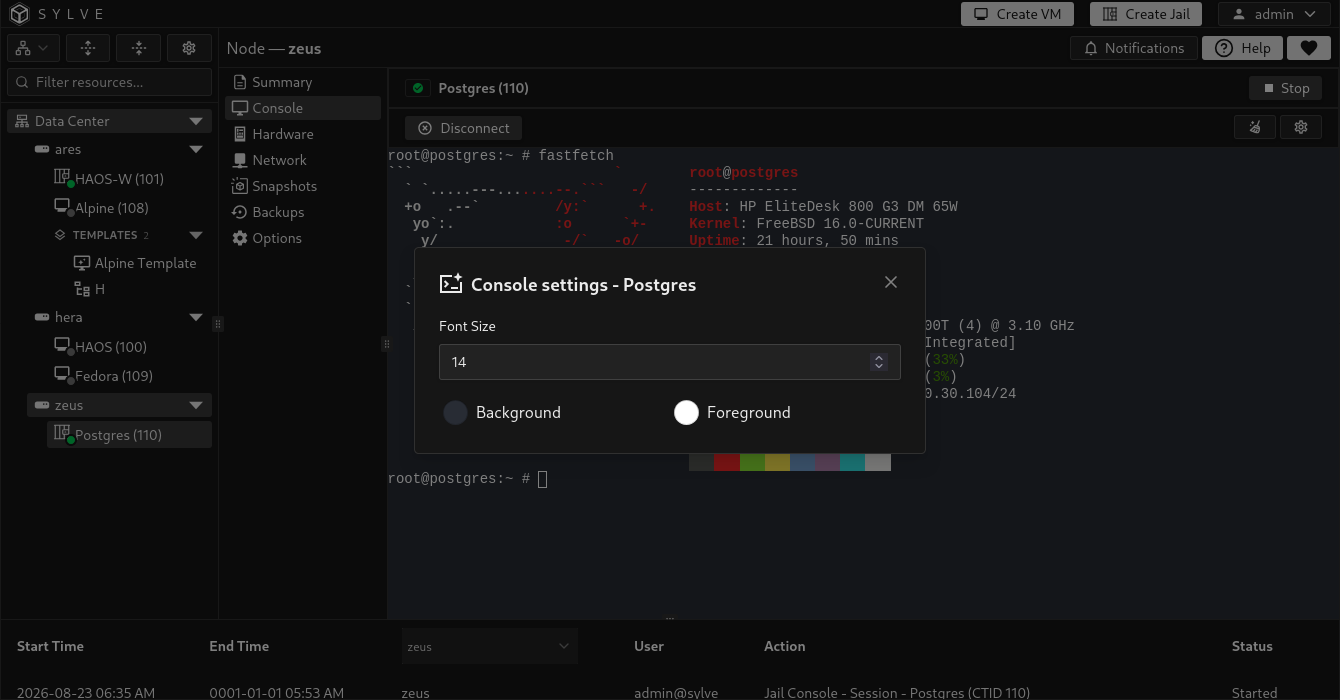
Section titled “Adjust the terminal”Open Settings to change the console appearance:
| Setting | Effect |
|---|---|
| Font Size | Sets the terminal font from 8 to 24 pixels. The default is 14 pixels. |
| Background | Changes the terminal background colour in this browser. |
| Foreground | Changes the terminal text colour in this browser. |
You can also increase or decrease the font size with Ctrl + + or Ctrl + -. On macOS, use Command instead of Ctrl.
These settings are stored in the browser separately for each jail on each node. They do not change the jail or another administrator’s console.
Understand connection changes
Section titled “Understand connection changes”Stopping the jail ends its console connection. Starting it again reconnects the page automatically unless you previously selected Disconnect. Leaving or reloading the page while a connection is open can produce a browser confirmation prompt.
The console can show these connection messages:
- The jail console session ended. The connection opened successfully and then closed.
- Unable to connect to the jail console. The initial connection could not be established.
- Jail console unavailable. The server could not start the shell process inside the jail.
To recover, confirm that the jail is active, check that this node owns any required replication lease, and select Reconnect. If the jail will not start, review its lifecycle output on the Summary page. A jail that is being restored must finish that operation before its console becomes available.