
Network
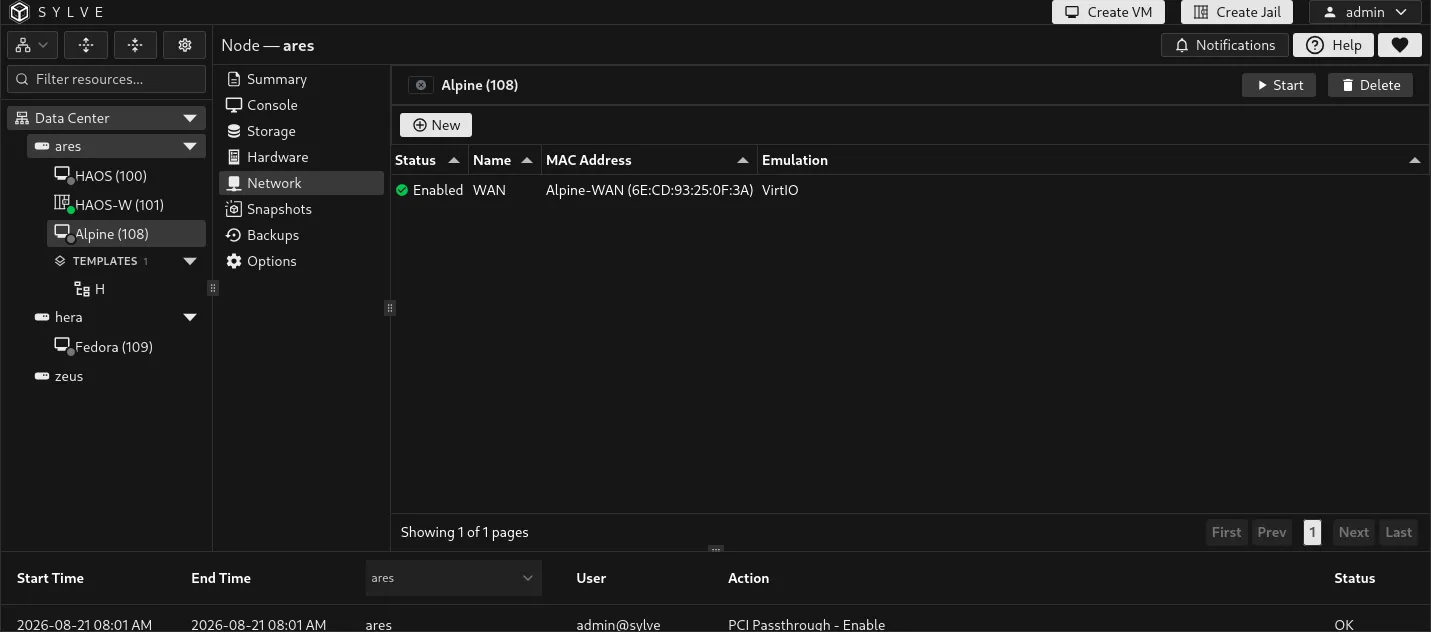
The Network tab manages the virtual network interfaces connected to a VM. Each interface connects the guest to a Sylve switch and has its own MAC address and emulated network card model.
Before you attach an interface
Section titled “Before you attach an interface”Create at least one standard switch or manual switch first. The Network tab only lists switches already available on the node.
- A standard switch is Sylve-managed and is the usual choice for a new configuration.
- A manual switch connects the VM to an existing bridge that you manage outside the standard-switch workflow.
See Switches for the underlying bridge and uplink configuration.
Attach a network
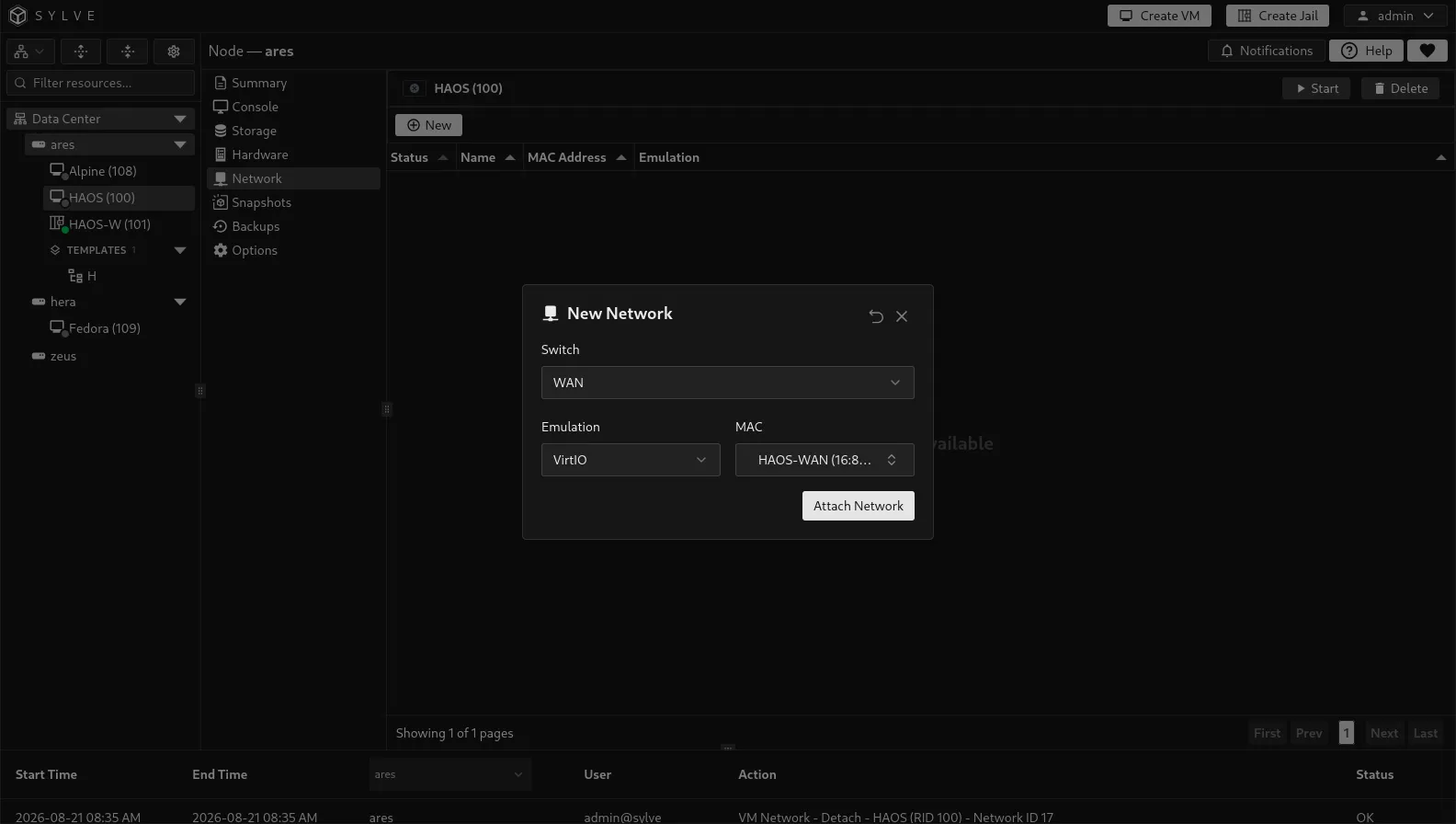
Section titled “Attach a network”Select New, then choose a switch, a network-card emulation model, and a MAC address.
| Field | Description |
|---|---|
| Switch | The standard or manual switch that the guest interface connects to. |
| Emulation | The guest-visible NIC model: VirtIO or E1000. |
| MAC | A named MAC network object, or the automatic option that creates a new one for this interface. |
Choose VirtIO for modern operating systems with VirtIO network drivers. Choose E1000 when a guest needs broad emulated Intel NIC compatibility, such as an installer or older operating system without VirtIO support.
When you leave MAC on its automatic option, Sylve generates a valid unique MAC address and saves it as a named MAC object. The name is derived from the VM and switch, making it easy to find later under Network Objects.
Sylve rejects a MAC address that is already attached to another VM or jail. This prevents duplicate guest addresses on your network.
Edit an interface
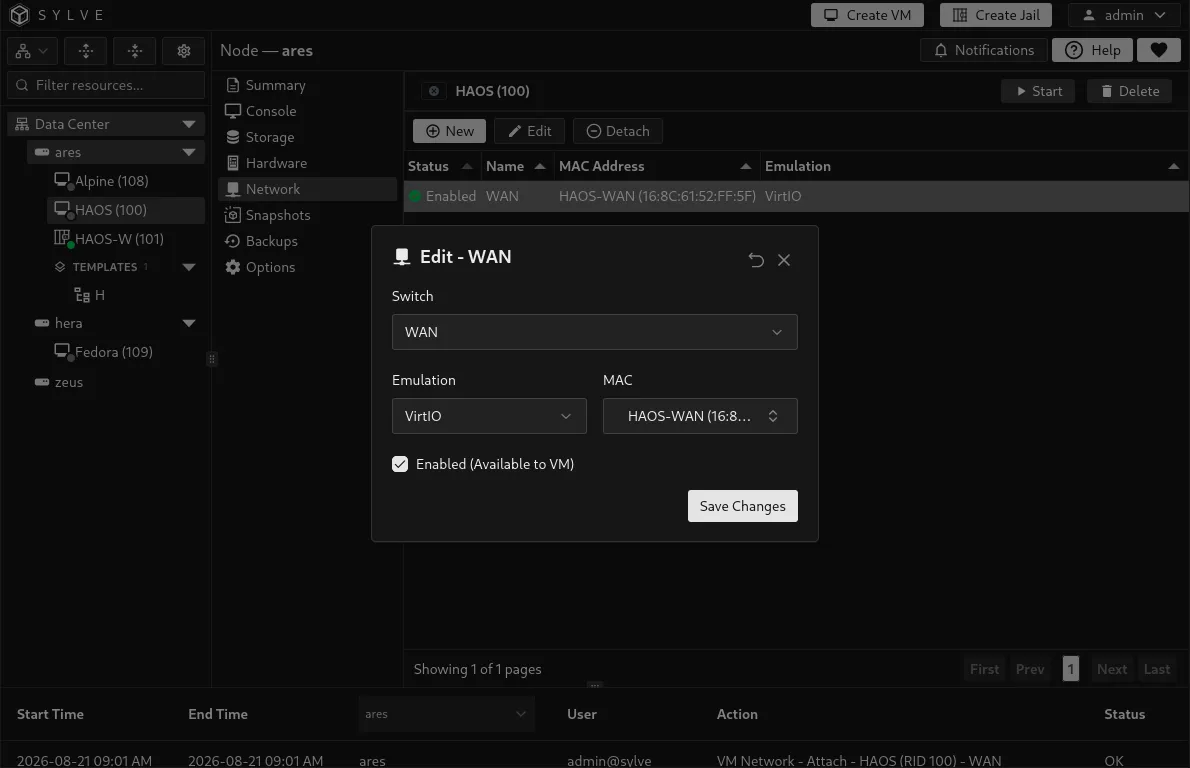
Section titled “Edit an interface”Select one interface in the table and choose Edit. You can move it to another available switch, change between VirtIO and E1000, choose a different MAC object, or toggle Enabled (Available to VM).
Disabled interfaces remain saved in the VM configuration but are omitted from the guest when the VM starts. This is useful when you want to keep an interface’s settings without exposing that network to the guest.
Detach an interface
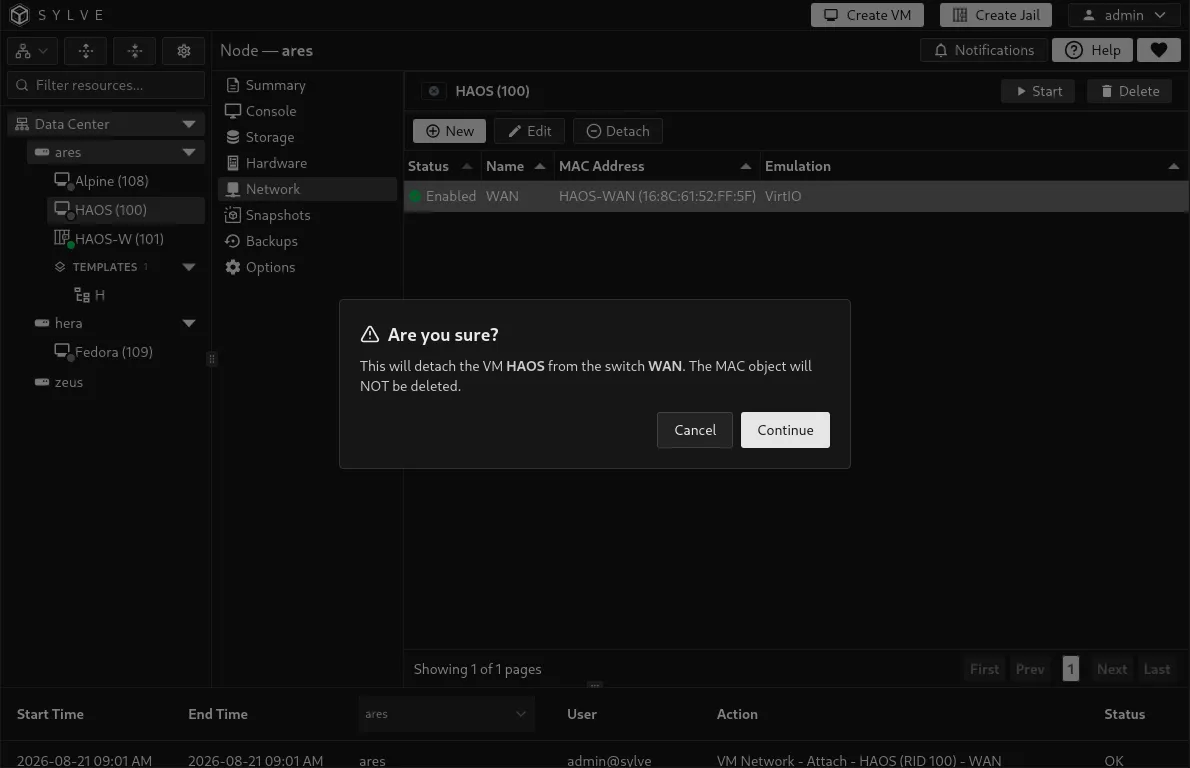
Section titled “Detach an interface”Select an interface and choose Detach to remove it from the VM. The confirmation dialog names the switch that will be detached.
Detaching an interface does not delete its MAC object. Reuse it for another interface if you need to preserve the guest’s network identity, or remove it later from Network Objects once nothing uses it.
What the table shows
Section titled “What the table shows”| Column | Meaning |
|---|---|
| Status | Whether the interface is enabled and will be included in the VM’s active network configuration. |
| Name | The selected switch. If the switch was removed separately, Sylve identifies it as an unknown switch instead. |
| MAC Address | The MAC object name and address when the interface uses an object, or the saved address otherwise. |
| Emulation | The network card model presented to the guest: VirtIO or E1000. |