
Volumes
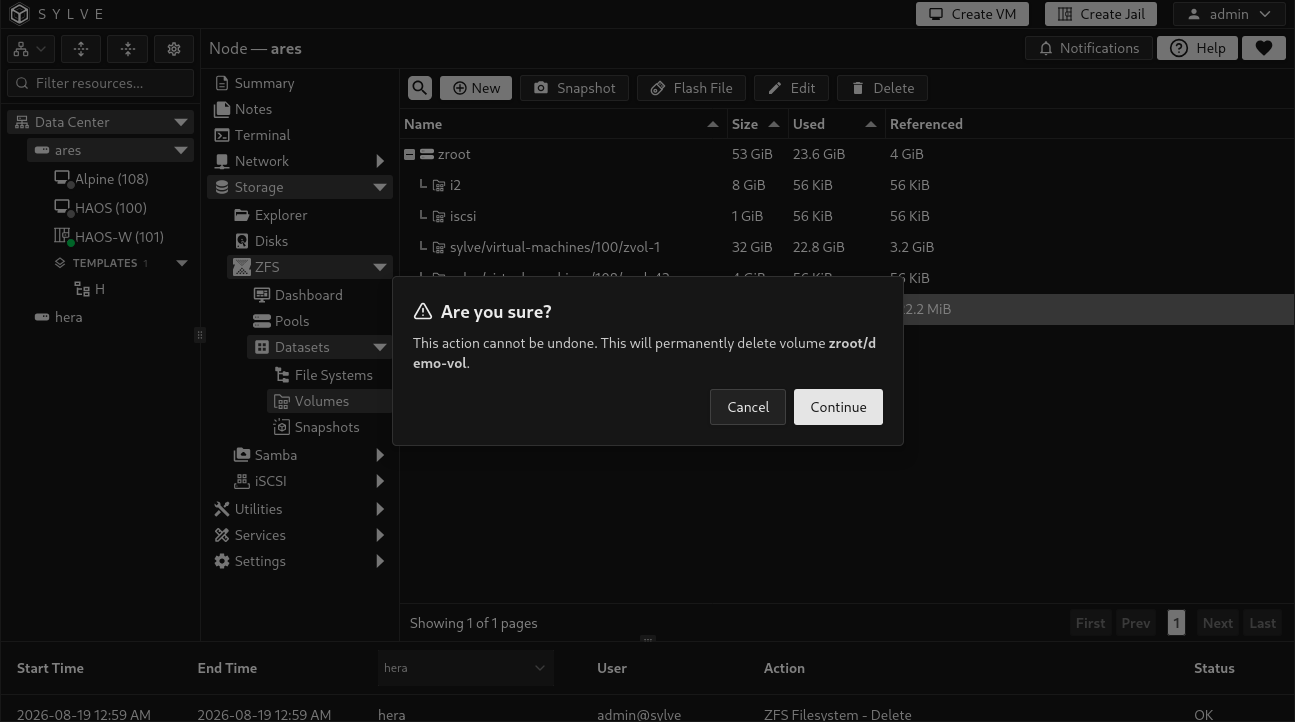
A ZFS volume, or zvol, is a dataset exposed by ZFS as a block device. Use a zvol where software expects a disk rather than a directory, such as a VM disk or a bootable image. The Volumes page groups volumes by pool and shows their Size, Used, Available, and Referenced space.
Select one volume to reveal Snapshot, Flash File, Edit, and Delete. Select several volumes to delete them together.
Create a volume
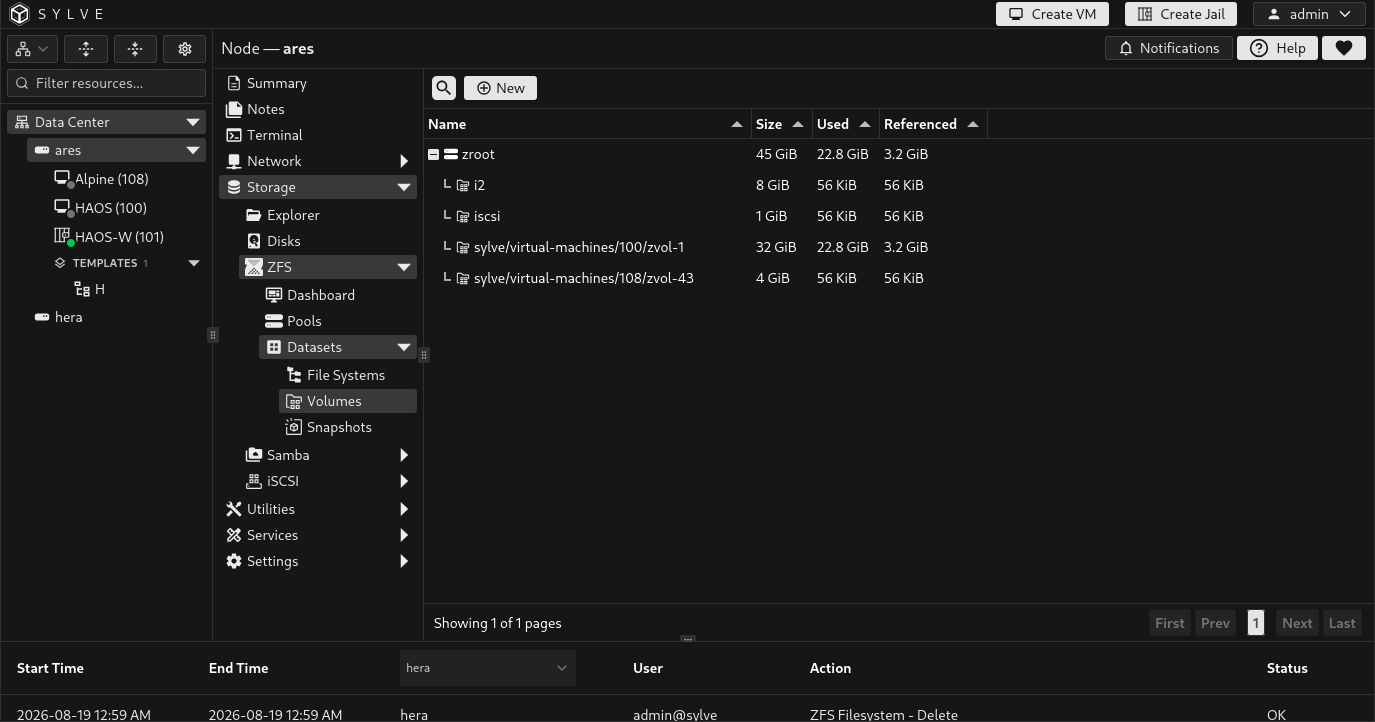
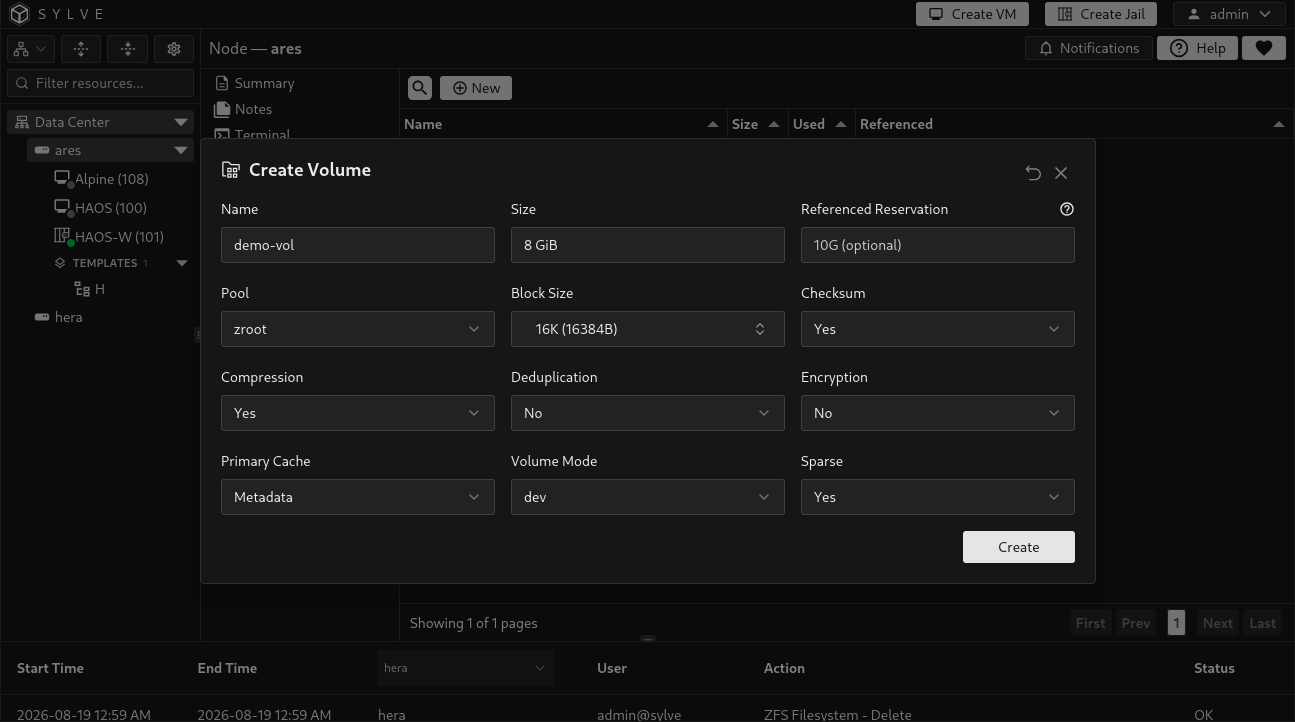
Section titled “Create a volume”Select New, choose the pool, supply a size, configure the zvol properties, then select Create. A volume is created directly under the chosen pool as pool/name.
| Option | What it controls | Available values or behavior |
|---|---|---|
| Name | The final path component of the zvol. | Required. It must be a valid ZFS dataset name and be unique in the selected pool. |
| Size | Logical size exposed by the block device. | Required size such as 64G. Sylve prevents a size larger than the pool’s currently free space. |
| Referenced Reservation | Space reserved for the zvol’s referenced data. | Optional size such as 10G. Leave empty for the ZFS default. This is particularly useful with sparse volumes when you need to guarantee part of their capacity. |
| Pool | Filesystem dataset that contains the zvol. | Required. The form presents available pools. |
| Block Size | Zvol block size. | Presets from 512B through 128K, including 4K for SSDs and VMs, 32K for sequential workloads, and 128K for media or backups. Custom byte values are accepted. Default: 16K. |
| Checksum | Integrity algorithm for data blocks. | Yes (on), No (off), fletcher2, fletcher4, sha256, or noparity. Default: Yes. |
| Compression | Per-volume compression setting. | Yes (on), No (off), gzip, lz4, lzjb, zle, zstd, or zstd-fast. Default: Yes. |
| Deduplication | Block-level deduplication mode. | No (off), Yes (on), or Verify. Default: No. |
| Encryption | Encryption for this volume. | No (off), Yes (on), or an AES-CCM/AES-GCM cipher: 128, 192, or 256 bit. Default: No. |
| Passphrase | Key material for a newly encrypted zvol. | Required when Encryption is enabled. Sylve can generate a value. Store it safely before creation. |
| Primary Cache | What ZFS may retain in ARC for this zvol. | All, Metadata, or None. Default: Metadata, a good default for many VM disks. |
| Volume Mode | How ZFS exposes the volume device. | default, full, geom, dev, or none. Default: dev. |
| Sparse | Whether the zvol is thin-provisioned. | Yes (on) or No (off). Default: Yes. A sparse zvol does not reserve its full logical size upfront. |
Edit a volume
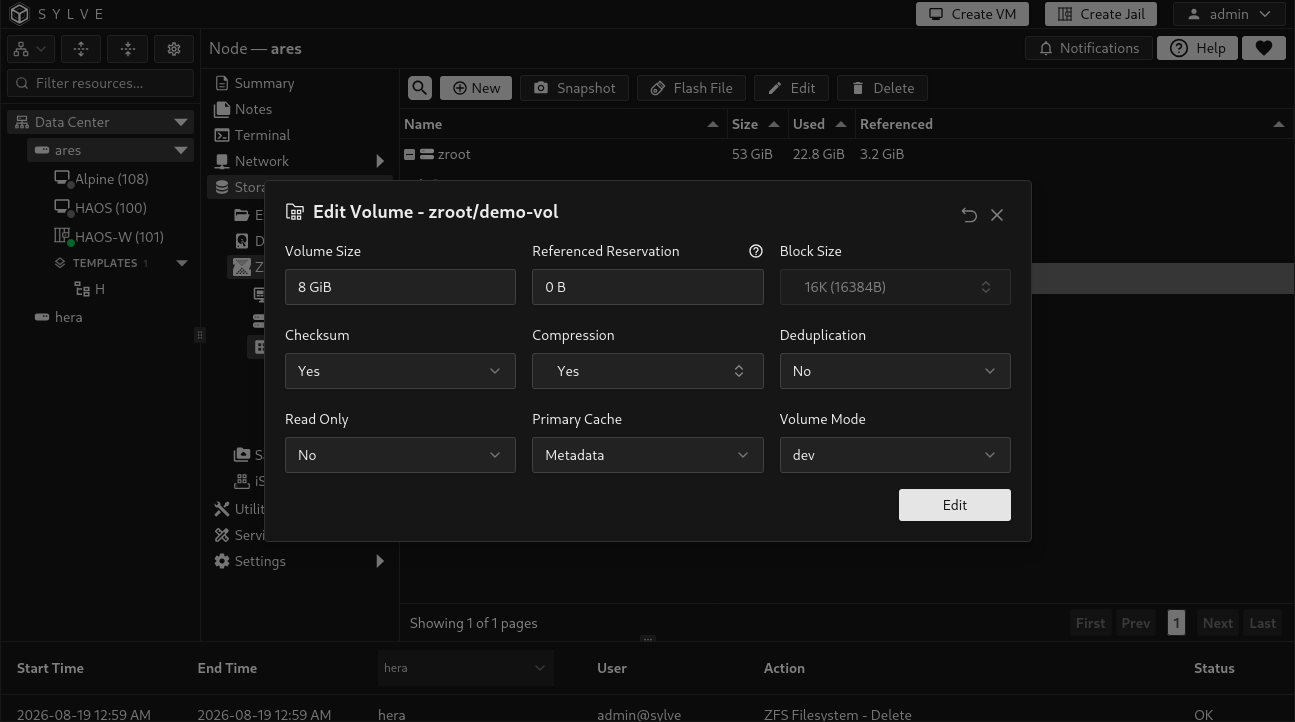
Section titled “Edit a volume”Select a volume and choose Edit. Its name, pool, encryption, sparse setting, and block size cannot be changed in this dialog.
| Option | Edit behavior |
|---|---|
| Volume Size | Change the logical zvol size. The new value must be an exact multiple of the existing block size. Sylve displays an adjustment control when it is not. |
| Referenced Reservation | Set a reservation size. Leaving the field empty keeps the current reservation value. |
| Block Size | Displayed for reference but disabled. ZFS block size is fixed when the zvol is created. |
| Checksum, Compression, Deduplication | Use the same values as the creation form. Compression accepts a custom ZFS value. |
| Read Only | No (off) or Yes (on). Set to Yes before handing a volume to a consumer that must not write to it. |
| Primary Cache | All, Metadata, or None. |
| Volume Mode | default, full, geom, dev, or none. |
Snapshot a volume
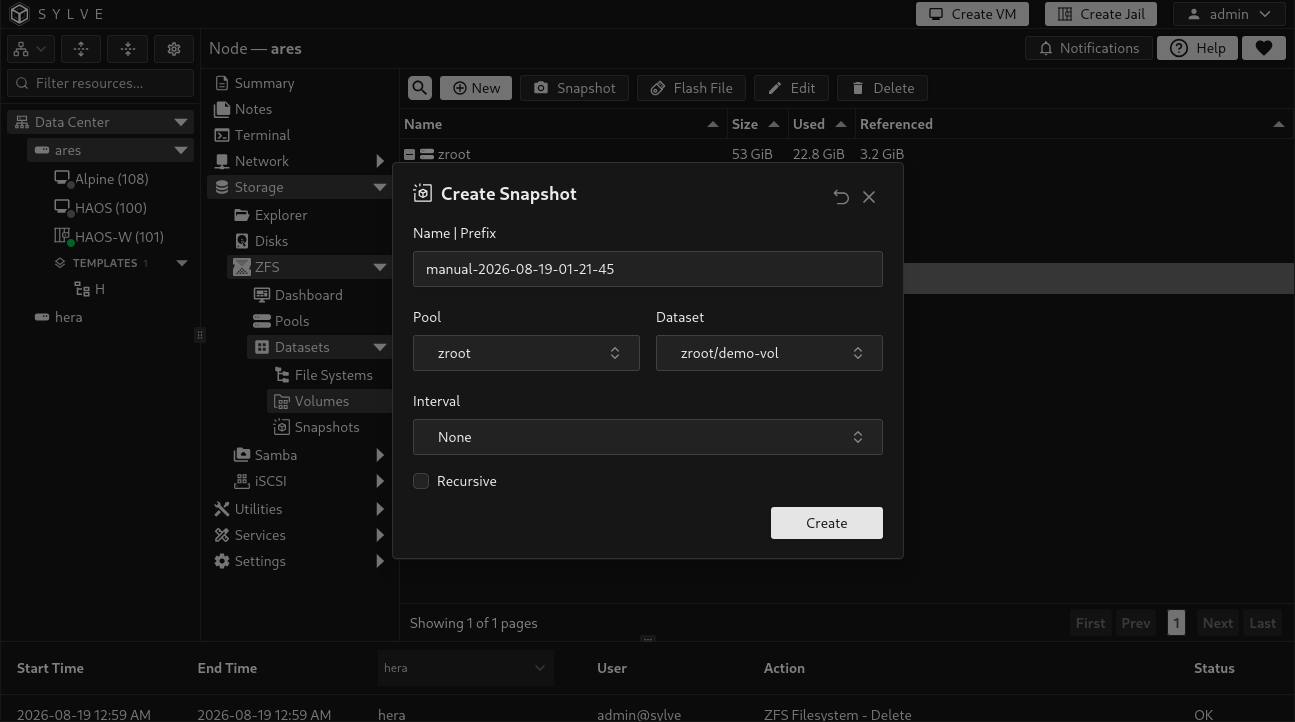
Section titled “Snapshot a volume”With one zvol selected, choose Snapshot to open the detailed snapshot form with the pool and zvol preselected. The form supports both one-time snapshots and periodic snapshot jobs. See Snapshots for the schedule and retention options.
Flash a downloaded file to a volume
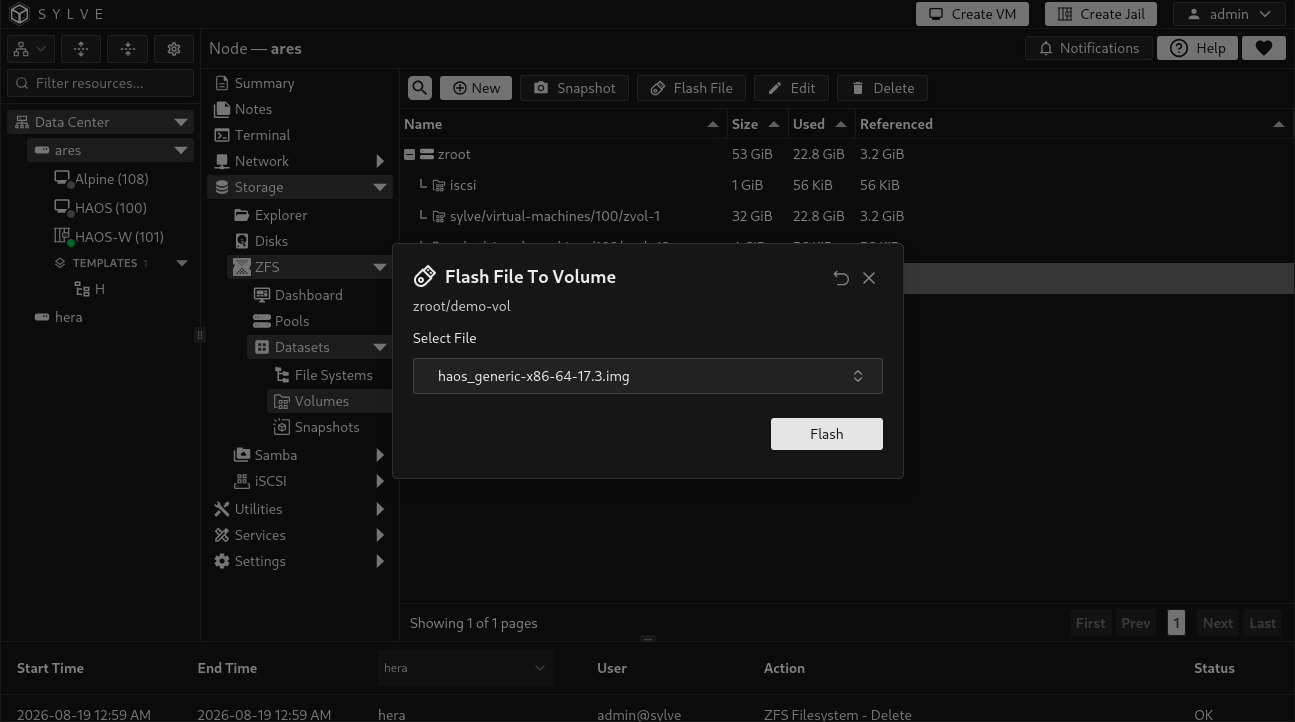
Section titled “Flash a downloaded file to a volume”Choose Flash File for a selected volume, choose an ISO or image already downloaded through Sylve’s Downloader, then confirm the write. Sylve writes the selected file to the zvol’s /dev/zvol/... block device.
The source file must fit inside the volume. Flashing is refused when the zvol is in use by a VM, and the operation overwrites its existing contents.
Delete volumes
Section titled “Delete volumes”Choose Delete for one volume or select several volumes and choose Delete Volumes. Deletion is permanent. Sylve refuses to delete a zvol referenced by a VM.