

Traffic Rules
Firewall → Traffic Rules is where Sylve turns an access policy into PF traffic rules on the node. A rule can pass or block traffic by direction, protocol, address family, interface, address, and port. Rules are evaluated in their displayed order, so the order is part of the policy; not just presentation.
Remove the bootstrap allow-all rules
Section titled “Remove the bootstrap allow-all rules”New nodes include Allow Inbound All and Allow Outbound All. They are deliberately permissive bootstrap rules: together, they pass all inbound and outbound traffic on every interface. They exist only so a new firewall does not lock its administrator out before a real policy has been created.
For a secure machine, replace and remove both rules. First add and verify the narrow rules the node needs; for example, management access from a trusted network, DNS or NTP as required, and the workload-specific traffic. Keep a console or out-of-band session available while changing a remote node. Only then delete the two allow-all rows.
Read the rule table
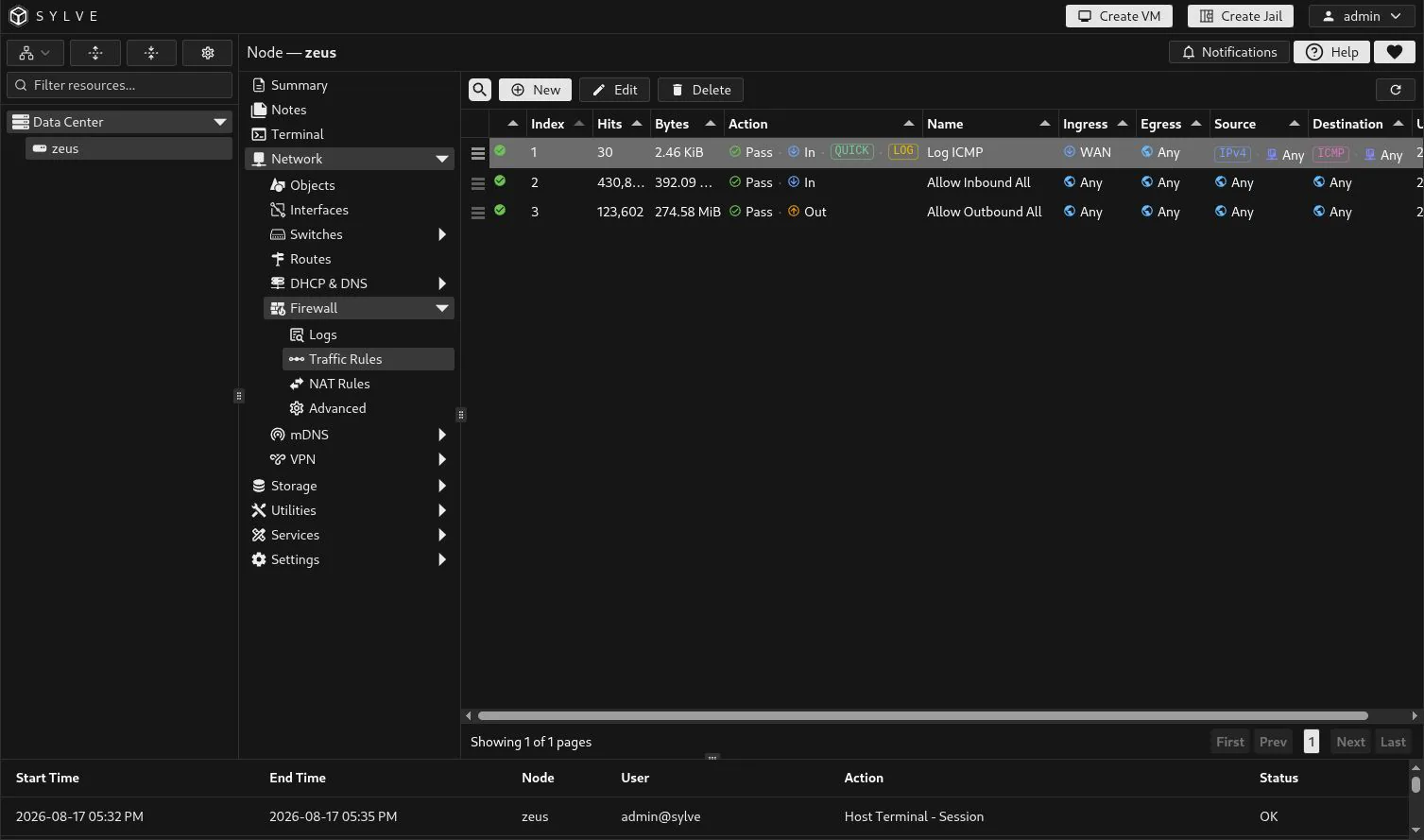
Section titled “Read the rule table”The live table below contains the bootstrap rules and a focused Log ICMP rule. A green status indicator means the rule is enabled. Hits and Bytes are runtime PF counters; they refresh while the page is open and can also be refreshed manually.
| Table element | Meaning |
|---|---|
| Index | Evaluation order. Lower indexes are considered first. Drag a row by its handle to change the order. |
| Action | Whether the rule passes or blocks traffic, followed by its direction. QUICK and LOG appear when those options are enabled. |
| Ingress / Egress | The interface constraint for inbound or outbound traffic. Any means the rule is not tied to a specific interface. |
| Source / Destination | The endpoint match. These can be a literal IP or CIDR, an Address object, or Any. |
| Hits / Bytes | PF packet and byte counters for the active rule. They help confirm that the rule being edited is the one receiving traffic. |
Click a row and choose Edit to inspect or change it. The action bar can create, edit, delete, refresh counters, and reorder rules.
Build a rule
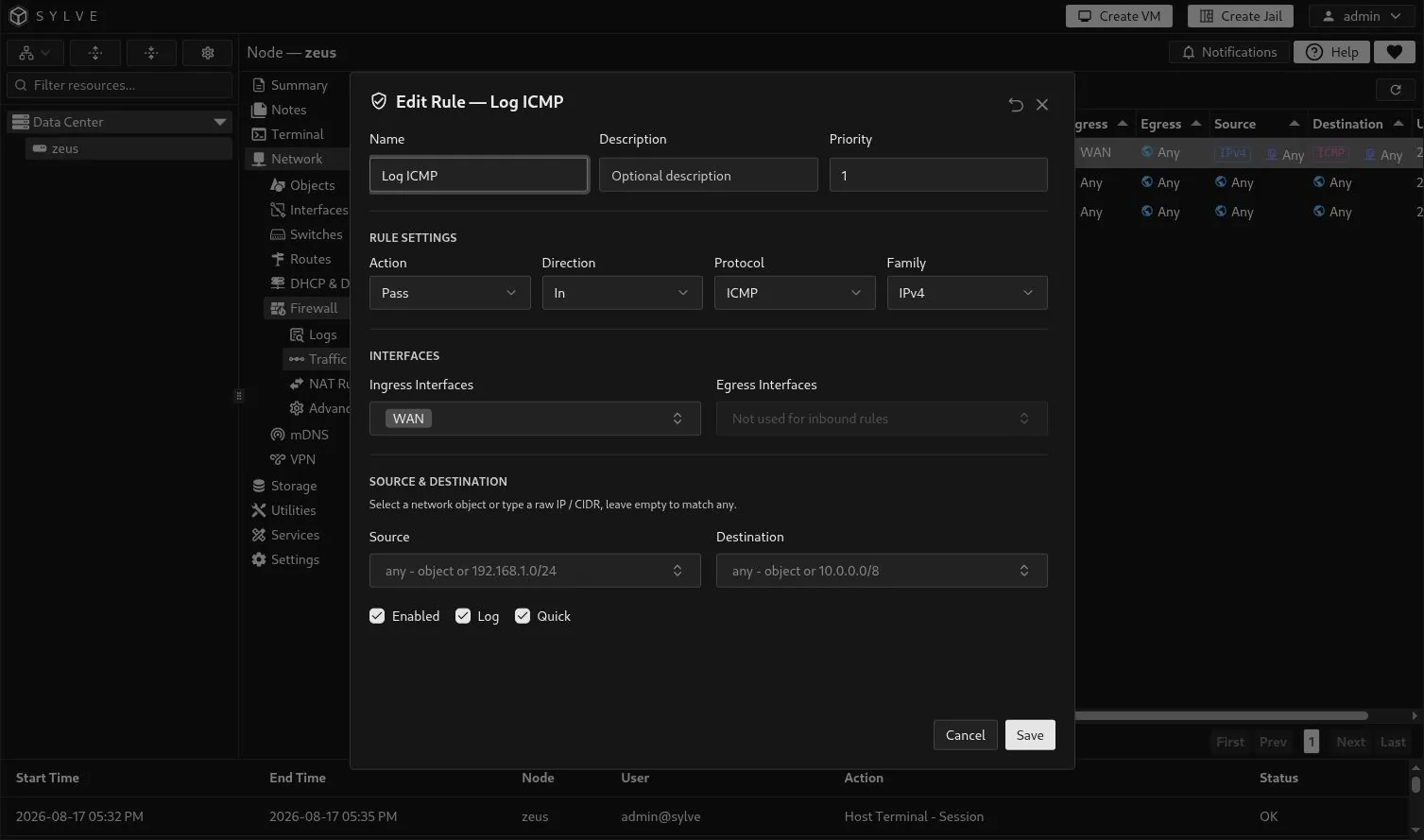
Section titled “Build a rule”This inbound Log ICMP rule is intentionally small: it passes IPv4 ICMP arriving through WAN, writes matches to Firewall Logs, and leaves both endpoints empty so they mean Any.
Identity and matching
Section titled “Identity and matching”| Field | How it works |
|---|---|
| Name / Description | Give the rule an operational name and optional explanation. Names are what appear in counters and Firewall Logs. |
| Priority | The rule’s position in the evaluation order. Sylve maintains unique ordering when rows are created or moved. |
| Action | Pass permits matching traffic; Block denies it. Build the policy from specific matches rather than relying on a broad pass rule. |
| Direction | In matches packets entering the node or a node-managed network; Out matches packets leaving it. The direction also selects which interface field can be used. |
| Protocol | Choose Any, TCP, UDP, TCP/UDP, or ICMP. The combined TCP/UDP option produces one rule that matches either transport protocol. Ports are available for TCP, UDP, and TCP/UDP rules; ICMP rules cannot have port matches. |
| Family | Any renders both address families. IPv4 and IPv6 restrict the rule to that family, and literal addresses or CIDRs must match it. |
Interfaces and endpoints
Section titled “Interfaces and endpoints”For an In rule, use Ingress to constrain where traffic arrives; Egress is used by an Out rule. Leave the applicable field empty for any interface. Sylve accepts standard switch bridges, manual bridges, physical interfaces, and supported tunnel interfaces as appropriate to the node.
For Source and Destination, type a literal host address or CIDR when the value belongs only to this rule. Prefer an Address object when the same host, network, FQDN, or list is reused: changing the object then updates every dependent rule when the firewall is applied. A typed value and an object are alternatives for the same endpoint, not cumulative matches. Leave an endpoint blank for Any.
TCP, UDP, and TCP/UDP rules have the equivalent choice for ports: enter a port or range such as 443 or 8000:9000, or select a reusable Port object. A blank port field means any port.
The rule editor has a vertical scroll area. After selecting TCP, UDP, or TCP/UDP, scroll down inside the editor to reach Source Ports and Destination Ports. The port controls are intentionally below the endpoint fields.
TCP, UDP, and List object examples
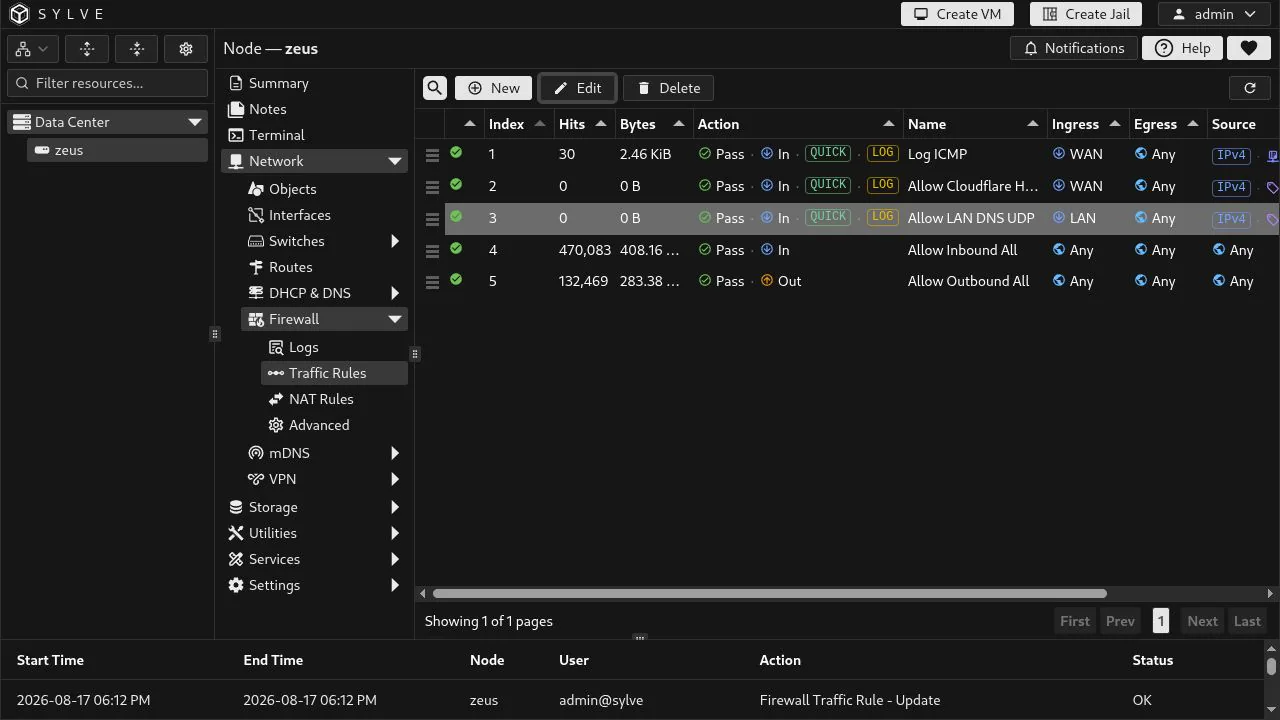
Section titled “TCP, UDP, and List object examples”The following rules are deliberately narrow examples. They sit above the bootstrap allow-all rules, so their counters and logs make it clear which rule handled the matching traffic.
Allow Cloudflare HTTPS
Section titled “Allow Cloudflare HTTPS”Allow Cloudflare HTTPS is an inbound IPv4 TCP pass rule on WAN. Its source is the Cloudflare IPv4 Ranges List object, its destination is the LAN Caddy Address Host object, and its destination port is 443. It is both logged and Quick.
This is a useful pattern when an upstream proxy owns a published service. The List object supplies the changing set of Cloudflare source networks, while the rule remains focused on one internal host and one service port. It should not be interpreted as a general permit for every client on the internet.
The walkthrough opens the rule and scrolls to its port fields. Scroll inside the rule editor whenever its lower fields are not visible.
Allow LAN DNS UDP
Section titled “Allow LAN DNS UDP”Allow LAN DNS UDP is an inbound IPv4 UDP pass rule on LAN. It uses LAN Network as the source object, LAN Caddy Address as the destination object, and UDP destination port 53. This exposes DNS only to clients on the LAN network, not to every interface or source address.
TCP and UDP rules use the same endpoint fields, but protocol selection determines whether port fields are available. A DNS deployment commonly needs a separate TCP 53 rule as well for larger responses and zone transfers where applicable. Add that only when the service and clients require it.
TCP/UDP in one rule
Section titled “TCP/UDP in one rule”Choose TCP/UDP when the same source, destination, and port policy should apply to both protocols. Sylve renders it as a PF protocol set containing TCP and UDP, while retaining one rule, one counter, and one logging choice. Use separate TCP and UDP rules when their ports, sources, logging, or handling need to differ.
Use List objects deliberately
Section titled “Use List objects deliberately”A List object is an externally refreshed address set. In a traffic rule, it behaves as the endpoint match for the whole resolved list, rather than a literal CIDR typed into one row. This is appropriate for a maintained provider range or a curated threat list. Keep the rule family compatible with the list’s entries. The Cloudflare example is IPv4, so the rule is also set to IPv4.
List refresh state is visible on the Network Objects page. Treat the object as an operational dependency: if its remote source is unavailable or its contents change, that can change which addresses match the firewall policy.
Enabled, Log, and Quick
Section titled “Enabled, Log, and Quick”- Enabled controls whether Sylve renders the rule into PF. Disabling a rule preserves its definition but removes it from the active policy.
- Log writes matching packets to the live Firewall Logs page. Enable it selectively while testing or auditing a meaningful boundary; logging a broad high-volume rule is noisy.
- Quick stops PF evaluation as soon as this rule matches. Without it, later matching rules can still affect PF’s final decision. Use Quick for a deliberate final decision, especially on a narrow management or deny rule, and be mindful of its position.
Order rules as a policy
Section titled “Order rules as a policy”Put narrow exceptions before broader rules. The Cloudflare HTTPS and LAN DNS examples are above Allow Inbound All, so they are evaluated before that broad bootstrap pass rule. Drag a row by the handle in the first table column to set its index. A broad early pass rule can make later blocks irrelevant; a Quick rule can make every later rule irrelevant for matching traffic.
Select two or more rows to replace the single-rule Delete action with Bulk Delete. It permanently removes every selected visible rule after confirmation. Use it for deliberate cleanup, not as a shortcut to an empty policy: deleting all visible rules causes Sylve to recreate the bootstrap allow-all pair on the next firewall apply.
When a rule is saved, deleted, or reordered, Sylve applies the resulting firewall configuration as a unit. If the apply fails, it restores the previous traffic-rule state rather than leaving the stored policy half-updated. Disabled rules stay available for future use but do not generate active PF rules.