
Snapshots
A ZFS snapshot is a point-in-time, read-only view of a filesystem or volume. It initially consumes little space, then grows as referenced blocks change or are removed. Use snapshots before risky changes, and use periodic jobs to keep a rolling recovery history.
Snapshots created by Sylve’s VM and Jail workflows are also visible here. For guest-specific recovery, use the snapshot controls on that guest’s details page.
Browse and filter snapshots
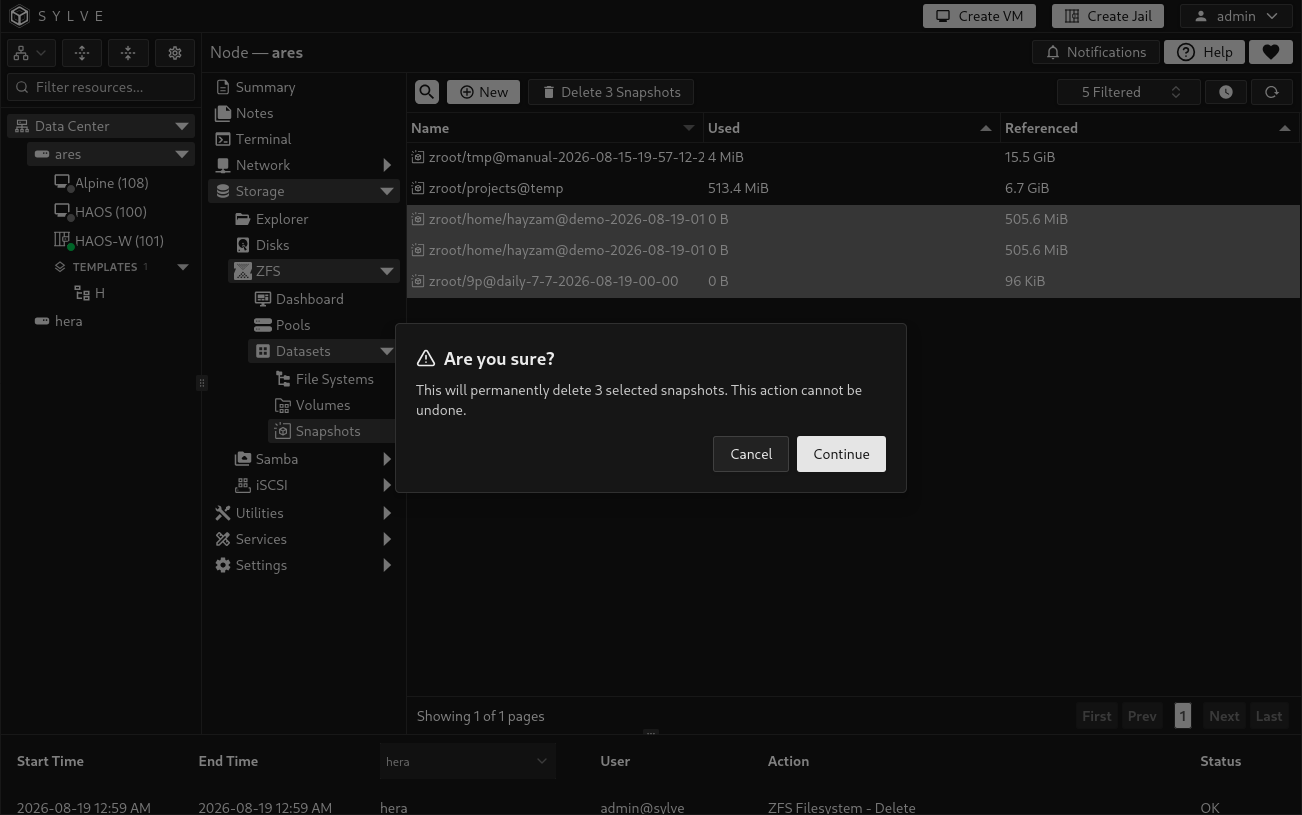
Section titled “Browse and filter snapshots”The Snapshots page is a paginated table with Name, Used, and Referenced columns. Use search to find snapshots by name, select one or more rows for deletion, and use the reload button to request fresh table data.
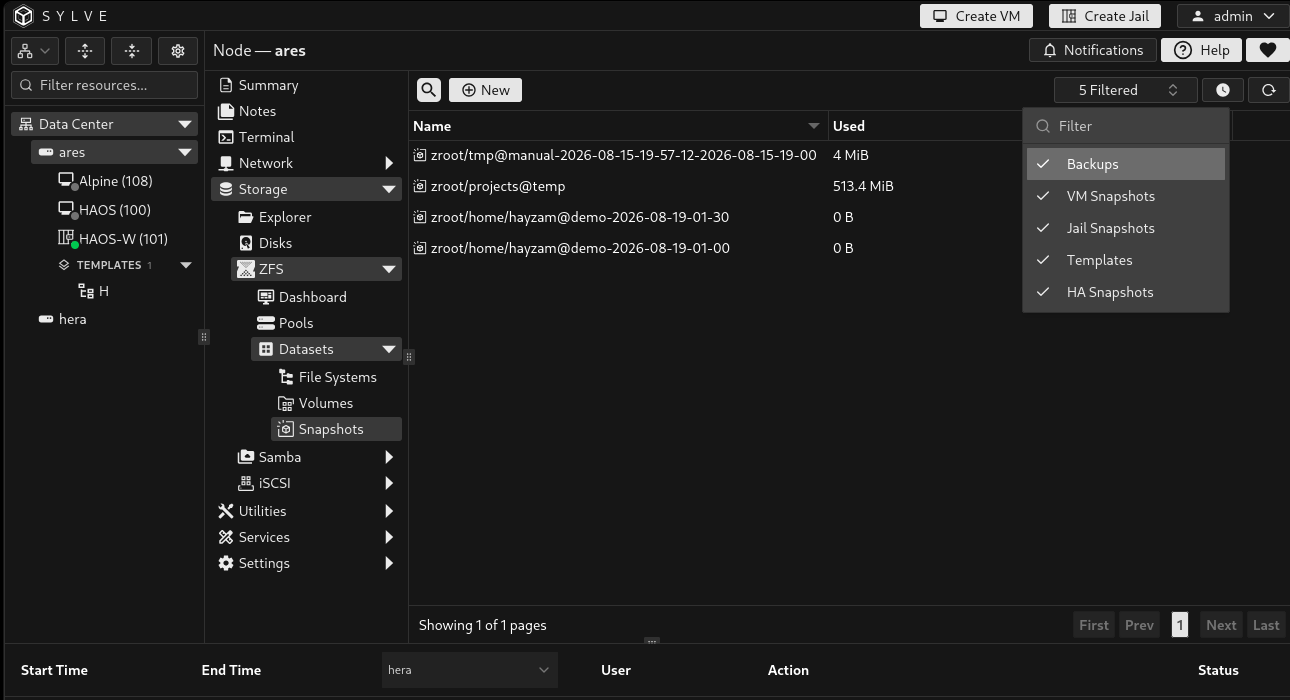
The Filter control hides common system-generated snapshot names by default. Remove an entry if you need to see that category.
| Filter label | Hidden name fragment |
|---|---|
| Backups | bk_j |
| VM Snapshots | svms_ |
| Jail Snapshots | sjs_ |
| Templates | _template |
| HA Snapshots | ha_ |
Create a snapshot or periodic job
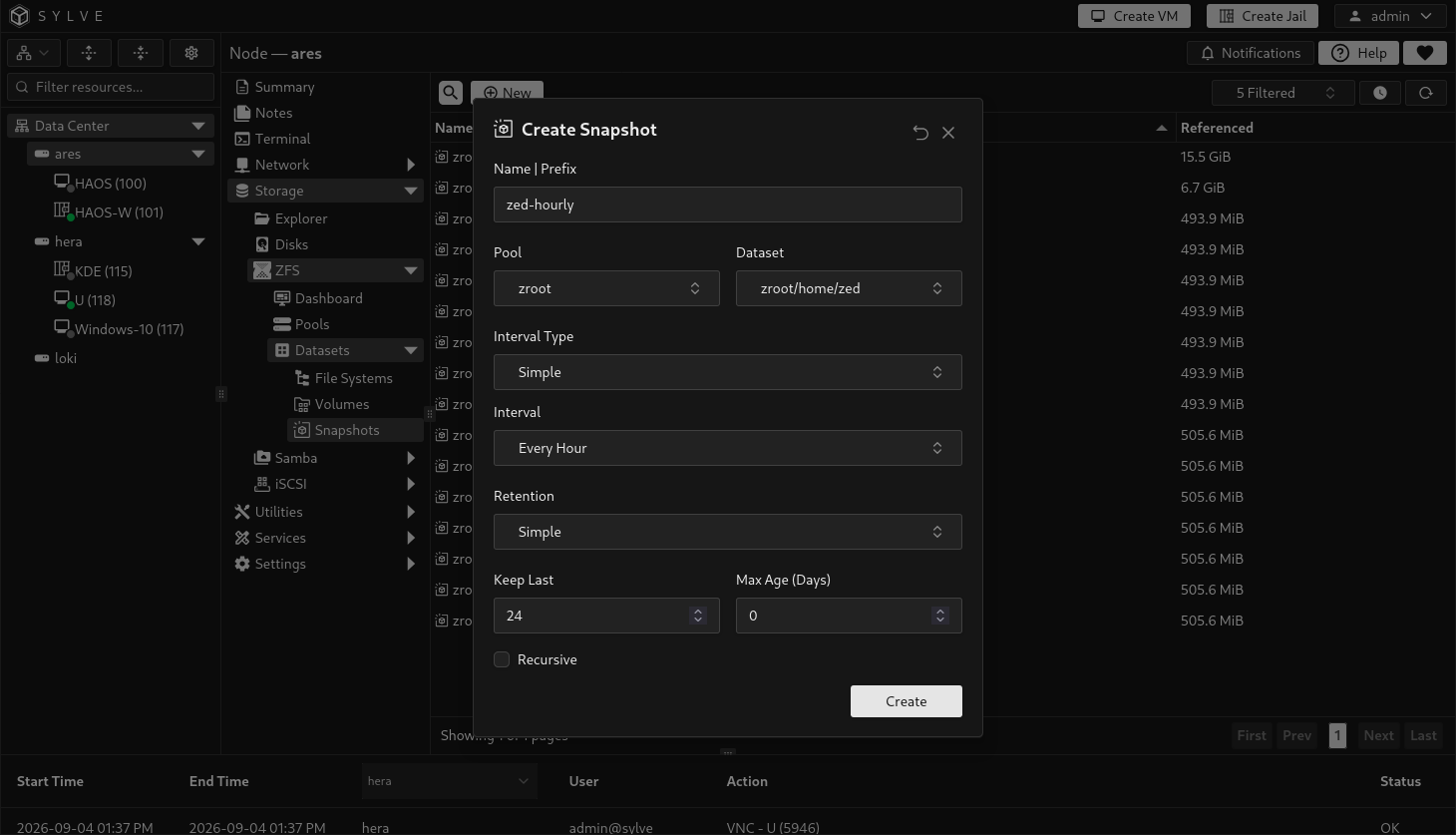
Section titled “Create a snapshot or periodic job”Select New. Choose the pool, choose a filesystem or volume in that pool, give the snapshot a name or prefix, and configure the schedule. You can also open this same dialog from a selected filesystem or volume, where its dataset is already filled in.
For a one-time snapshot, set Interval Type to None. For a recurring job, choose Simple or Cron Expression and optionally apply a retention policy.
| Option | What it controls | Available values or behavior |
|---|---|---|
| Name | Prefix | Snapshot name for a one-time action, or the prefix used by a periodic job. | Required. One-time names must be unique on the dataset. Periodic snapshots receive a timestamp, such as daily-2026-08-19-14-30. |
| Pool | Narrows the Dataset list. | Required. Select one of the pools configured for Sylve. |
| Dataset | Filesystem or volume to snapshot. | Required. Only datasets in the selected pool are offered. |
| Interval Type | Whether this is a one-time action or a periodic job. | None, Simple, or Cron Expression. None creates a snapshot immediately. |
| Simple interval | Fixed periodic cadence. | Every Minute, Every Hour, Every Day, Every Week, Every Month, or Every Year. |
| Cron Expression | Custom recurring schedule. | A standard five-field cron expression, for example 0 0 * * * for midnight every day. A periodic job must use exactly one schedule type: Simple or Cron Expression. |
| Retention | Automatic pruning policy for a periodic job. | None, Simple, or GFS. It appears after choosing a periodic interval. |
| Keep Last | Number of newest snapshots to retain. | Available with Simple and GFS retention. Enter 0 to leave it unused. |
| Max Age (Days) | Age-based pruning limit. | Simple retention only. Snapshots older than this many days may be removed. Enter 0 to leave it unused. |
| Keep Hourly | Number of hourly recovery points to retain. | GFS retention only. |
| Keep Daily | Number of daily recovery points to retain. | GFS retention only. |
| Keep Weekly | Number of weekly recovery points to retain. | GFS retention only. |
| Keep Monthly | Number of monthly recovery points to retain. | GFS retention only. |
| Keep Yearly | Number of yearly recovery points to retain. | GFS retention only. |
| Recursive | Includes child datasets in the snapshot operation. | Off by default. Enable only when the dataset tree needs one consistent recovery point. |
Retention choices
Section titled “Retention choices”Choose a retention policy deliberately. A value of 0 means that specific limit does not keep snapshots. Simple and GFS retention cannot be combined in the same job.
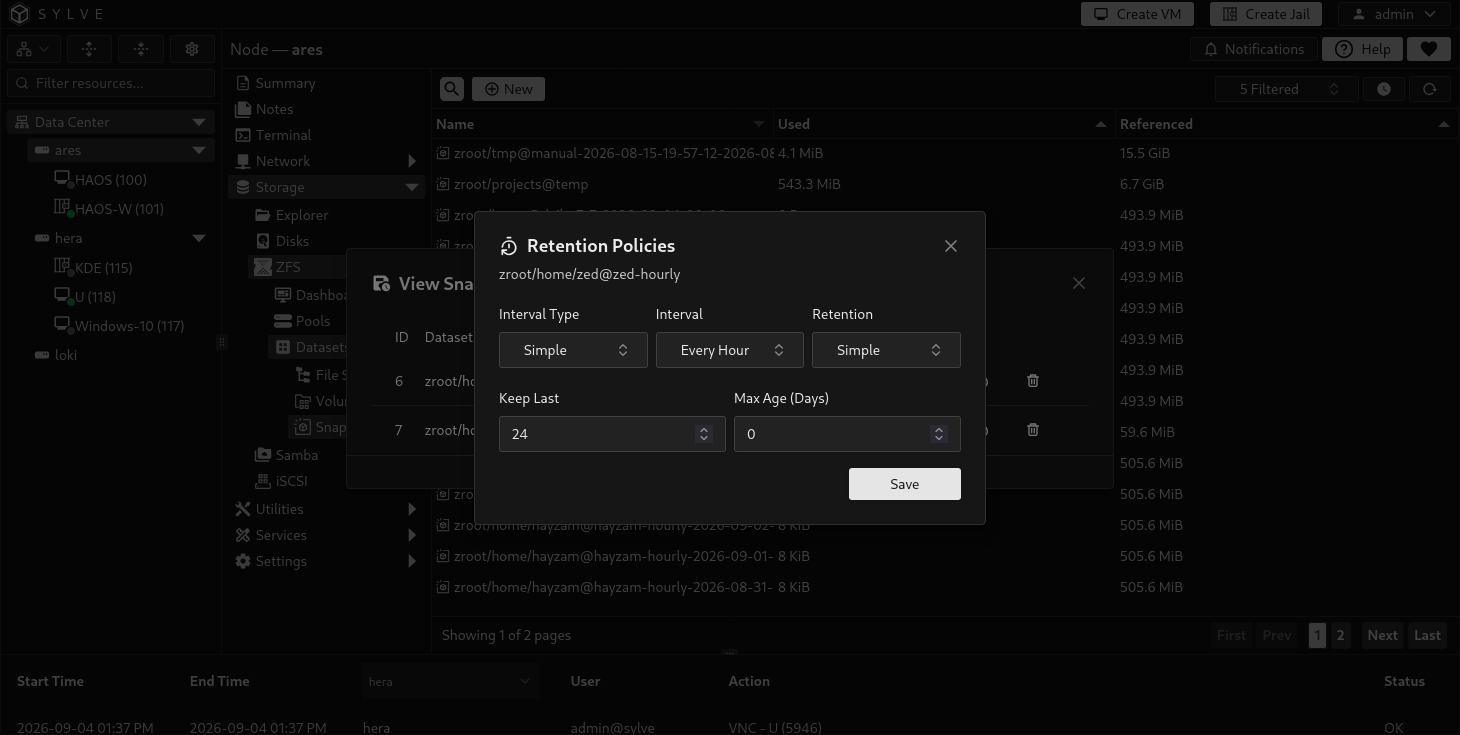
The form starts Simple retention at Keep Last 24 and Max Age 0 days. GFS starts at Keep Last 20, Hourly 24, Daily 7, Weekly 4, Monthly 12, and Yearly 3. These are editable starting points, not fixed limits. Simple and GFS each require at least one value greater than 0 before the job can be saved.
| Retention type | How Sylve retains snapshots |
|---|---|
| None | The scheduler creates snapshots but does not prune them. Monitor capacity and delete old snapshots manually. |
| Simple | Keeps the newest Keep Last snapshots and/or removes snapshots beyond Max Age (Days). |
| GFS | Keeps the newest snapshot for each requested hourly, daily, weekly, monthly, and yearly bucket. Keep Last can also preserve additional newest snapshots. |
View periodic jobs
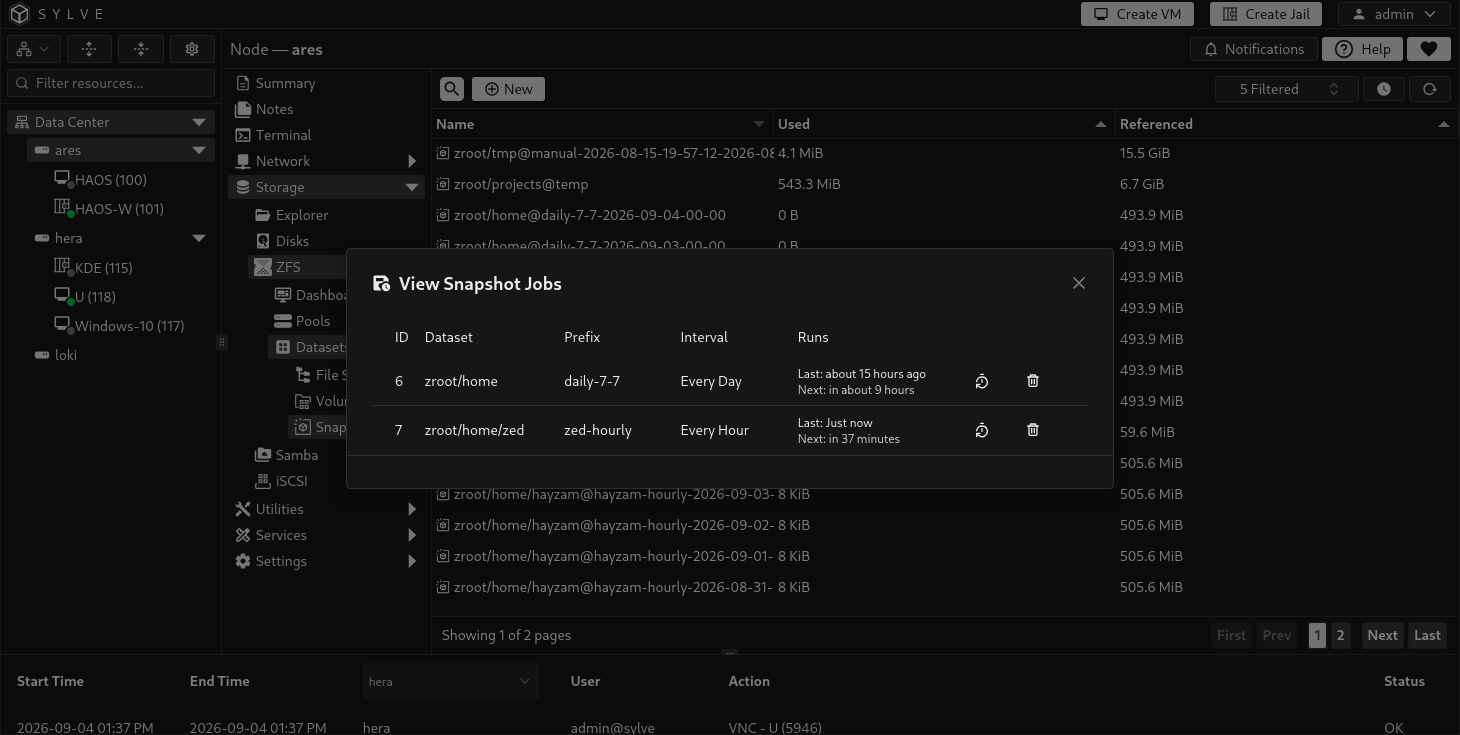
Section titled “View periodic jobs”Select the clock button, then choose a pool, to open View Snapshot Jobs. The dialog lists each job’s ID, dataset, prefix, interval or cron schedule, and two run times:
| Run time | Meaning |
|---|---|
| Last | When Sylve actually executed the most recent run. A new job that has not executed yet shows Never. Hover over it to see the actual time and the scheduled boundary handled by that run. |
| Next | The next calculated schedule time. It can show Unknown when no valid time is available or Due now when the calculated time has arrived. |
Run times are shown relatively, such as 5 minutes ago or in 20 minutes. Hover over a known time to see its complete local date and time. Use the retention button on a row to change its schedule and retention settings, or mark rows for deletion and select Save Snapshot Jobs.
The retention button opens the Retention Policies dialog for that job. It lets you change the interval type and schedule, then choose None, Simple, or GFS retention and edit the corresponding values described above. Recursive scope is not changed from this editor.
Delete snapshots
Section titled “Delete snapshots”Select one or more rows, then choose Delete Snapshot. The confirmation states how many snapshots will be removed. This is permanent and can free space only after no remaining snapshots reference the changed blocks. Delete only snapshots you created or explicitly own. Do not delete snapshots normally hidden by the category filter. Use the VM, Jail, HA, template, or backup workflow that owns them instead.