

Targets
A backup target is the remote ZFS destination that receives data from a backup job. Sylve connects to it over SSH, so the target needs a reachable SSH service, ZFS, and an account whose key can create and write the configured ZFS path.
Add a target
Section titled “Add a target”Open Data Center → Backups → Targets and select New.
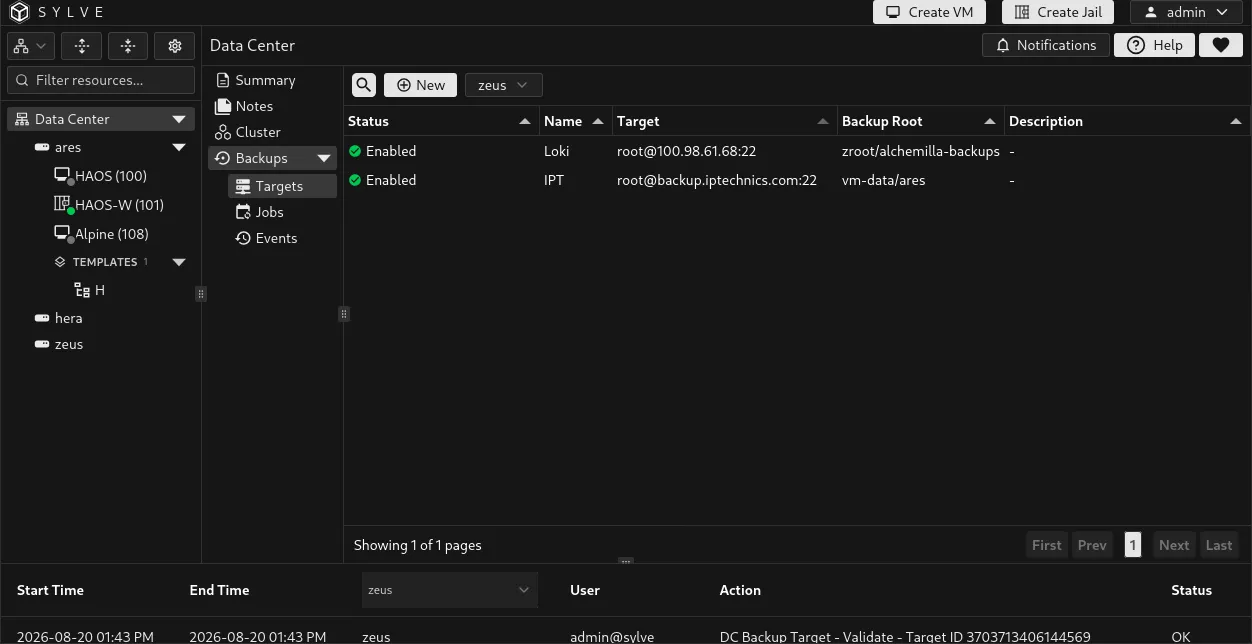
| Field | Description |
|---|---|
| Name | A recognizable name for this destination. |
| SSH Host | The target’s hostname or IP address. Enter the host only, not user@host or a port. |
| SSH Port | SSH port on the target. The default is 22. |
| SSH Private Key | Private key Sylve uses to authenticate. A new target requires a key. When editing, leave it empty to retain the already stored key. |
| Backup Root | ZFS dataset path that contains backed-up datasets, such as tank/sylve-backups. |
| Description | Optional operator-facing context for the target. |
| Create Backup Root | Create the configured root dataset if it does not already exist. |
| Enabled | Allows jobs to use the target. Disable it before deleting it. |
Validate connectivity per node
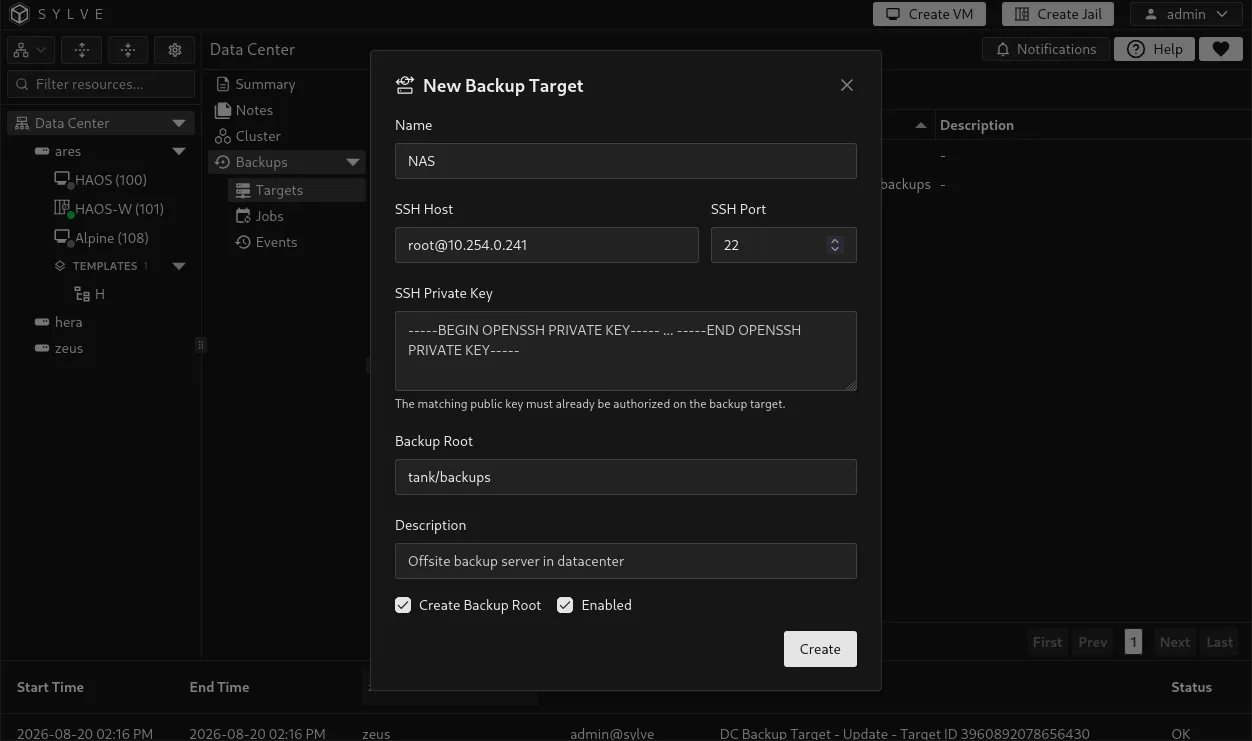
Section titled “Validate connectivity per node”In a cluster, each participating node needs to be able to reach the target with the configured credentials. Select the node in the validation selector, choose a target, then select Validate. The target table shows the selected node’s readiness state.
| Readiness | Meaning |
|---|---|
| Ready | The selected voter recently connected and validated the current target configuration. |
| Not validated | No successful validation has been recorded for that node. |
| Failed | The last validation attempt failed. Inspect the target, network reachability, account permissions, and key. |
| Configuration changed | The target changed after its last validation. Validate again with the current settings. |
Validation does not send a backup. It is a safe way to check the selected node’s path to the remote ZFS target before assigning or running a job.
VM and jail migrations also validate the destination’s access to every target used by an enabled backup job for that guest. The check runs during the initial preflight and again before cutover. Migration is blocked if a required target is missing, disabled, unreachable, or cannot use the configured SSH and ZFS path from the destination node.
Edit, disable, and delete
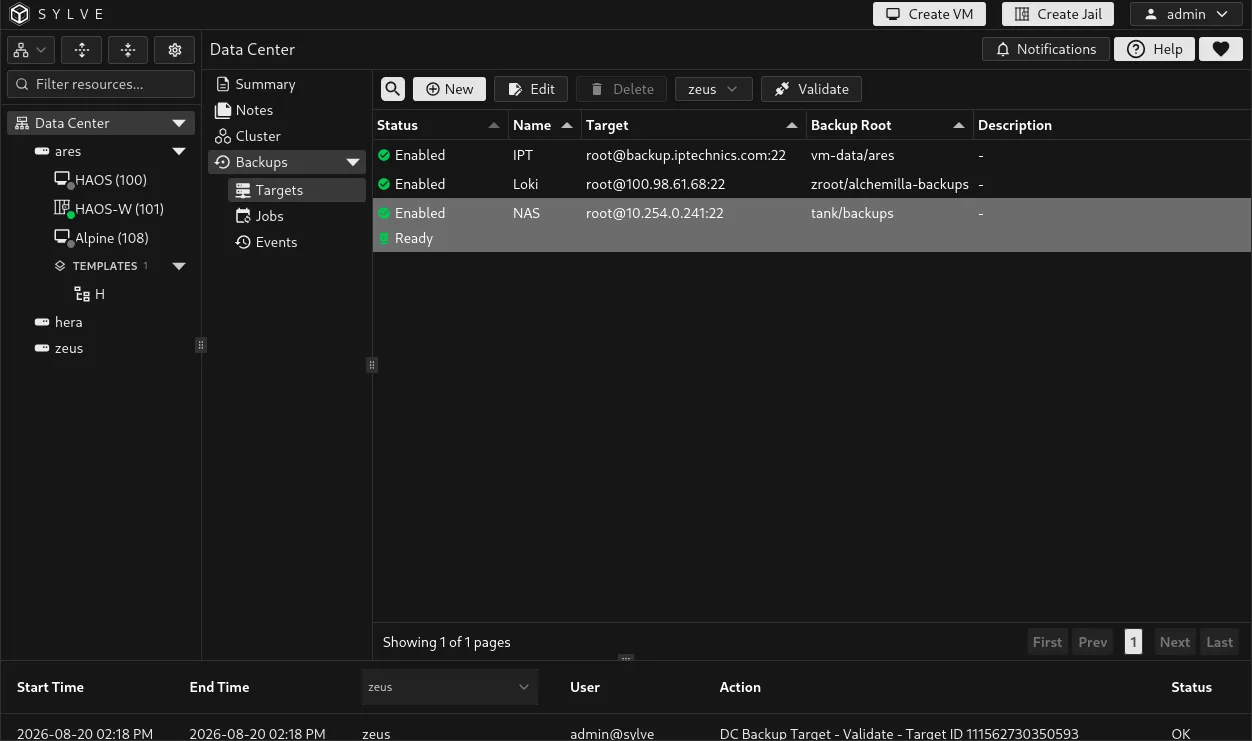
Section titled “Edit, disable, and delete”Select one row to reveal Edit and Delete. Changes to host, port, key, or root invalidate previous readiness, so validate again afterwards. Sylve requires a target to be disabled before it can be deleted. This prevents an active destination from disappearing by accident.