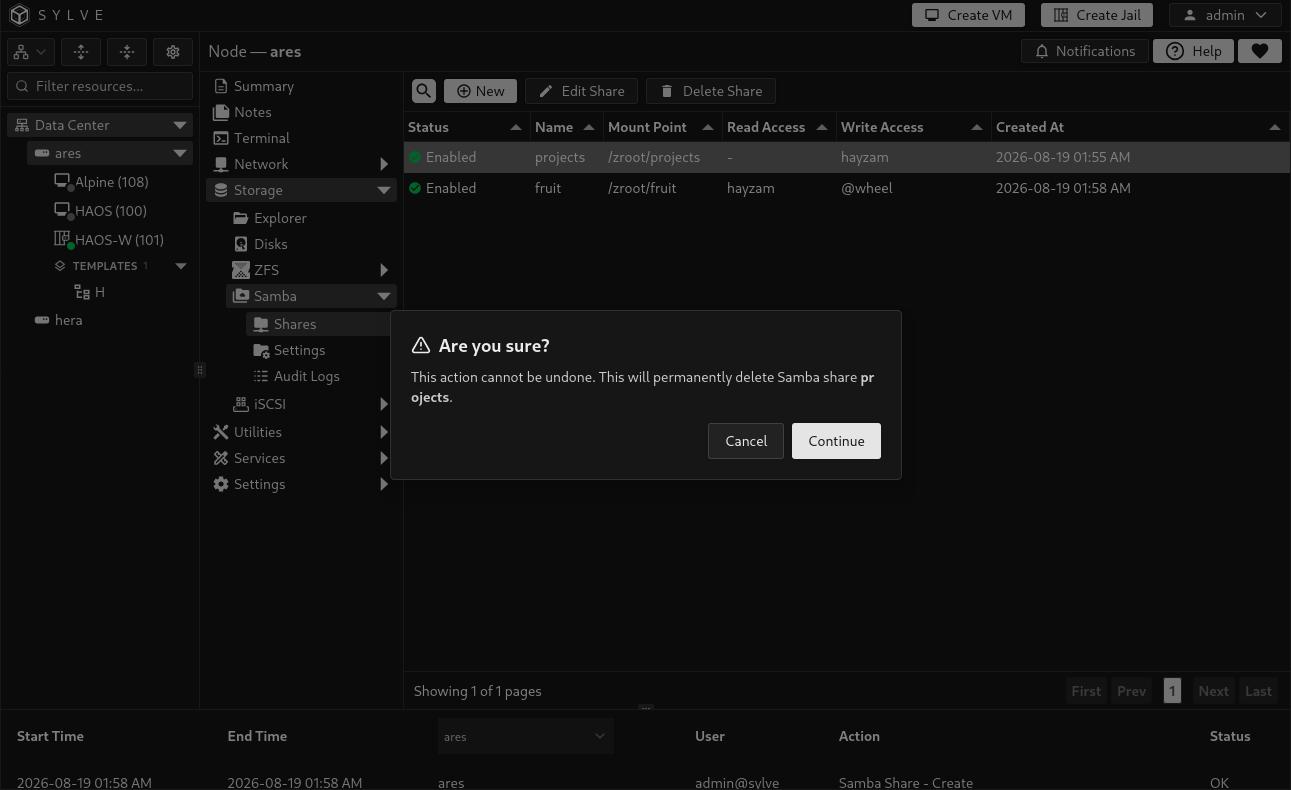

Shares
Samba shares publish a mounted ZFS filesystem over SMB. Each share is bound to exactly one dataset, and a dataset can belong to only one Samba share. Create the filesystem first, then use Storage → Samba → Shares to publish it.
The Shares table shows the share’s status, name, dataset mount point, read and write principals, and creation time. Select a row to edit or delete that share.
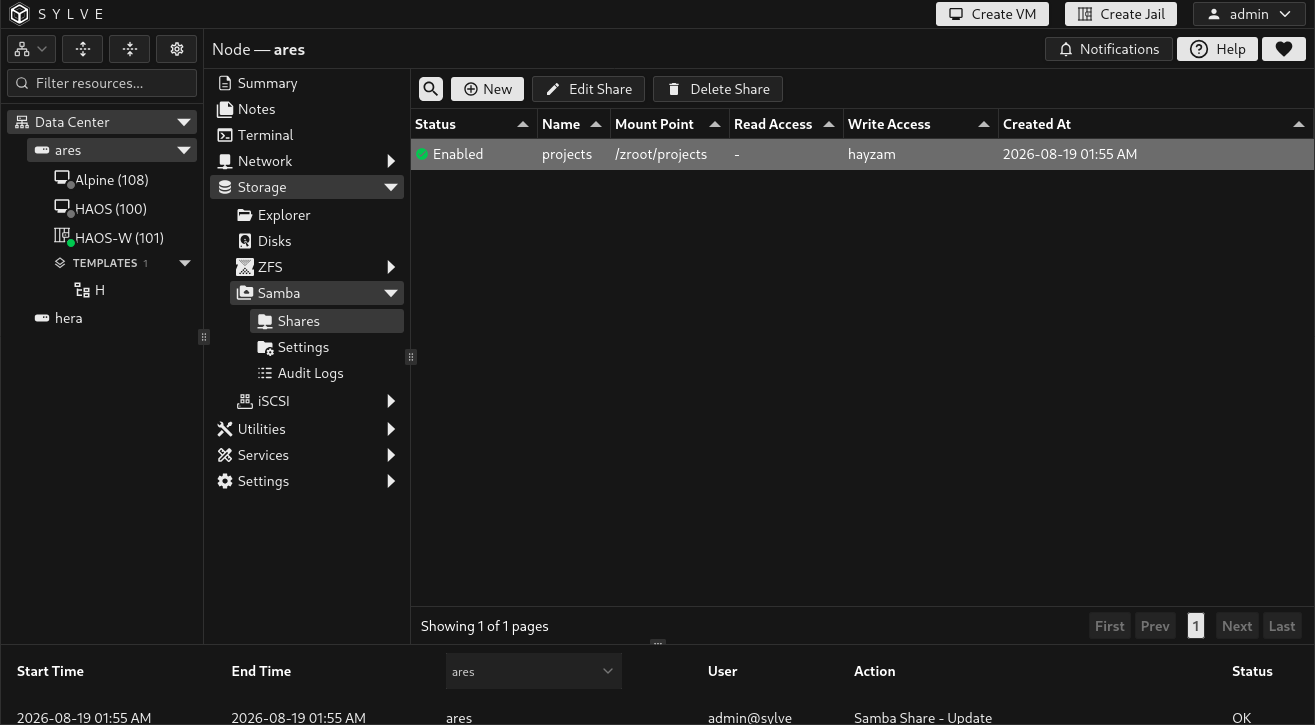
Create a share
Section titled “Create a share”Select New. The dialog has Details, Access, and Options tabs. Configure all three before selecting Create Share.
Details
Section titled “Details”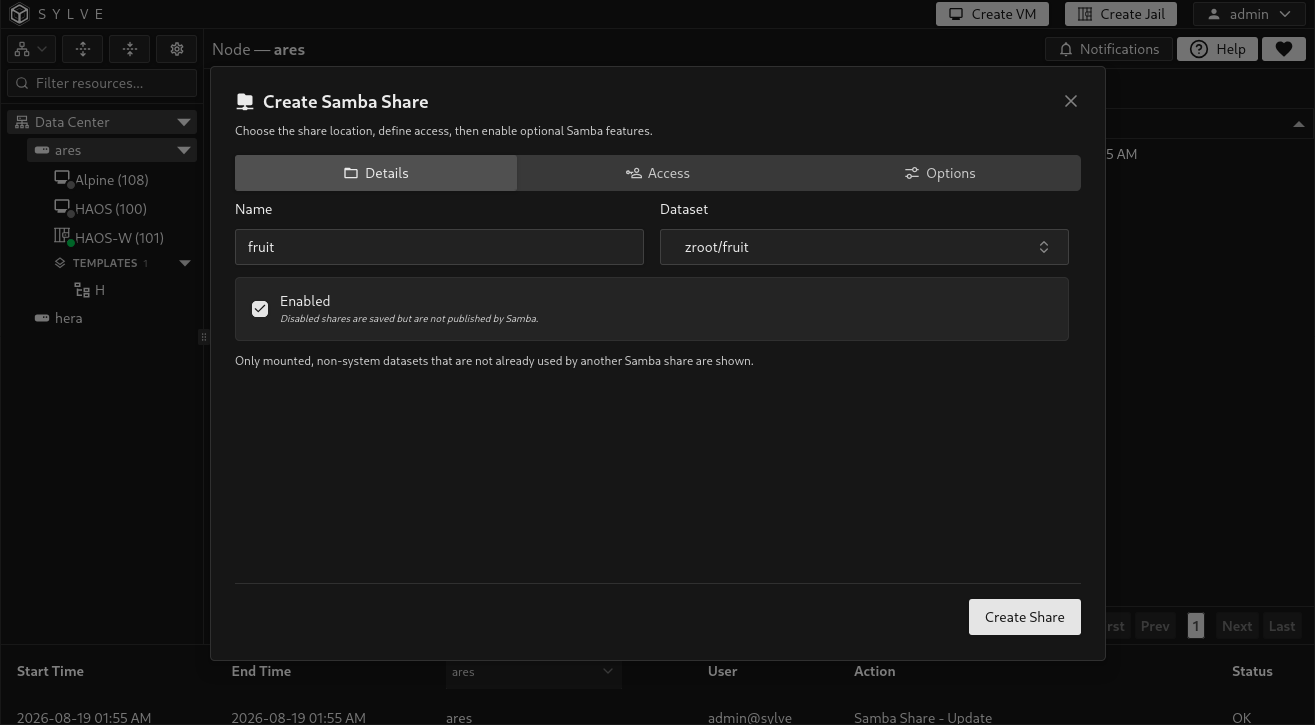
| Option | Behavior |
|---|---|
| Name | Required share name. It must be unique and cannot contain square brackets or line breaks. This is the SMB share name clients browse. |
| Dataset | Required mounted ZFS filesystem to publish. Sylve excludes unmounted datasets, the pool root, pool/ROOT/..., pool/sylve/..., and datasets already used by another Samba share. |
| Enabled | When enabled, Sylve writes the share into Samba’s configuration. A disabled share remains saved for later but is not published. |
When Sylve creates or enables a share, it applies nfsv4 ACLs with restricted ACL mode and passthrough inheritance to its dataset. If a shared dataset is later deleted through a managed Sylve workflow, its share is disabled automatically.
Access
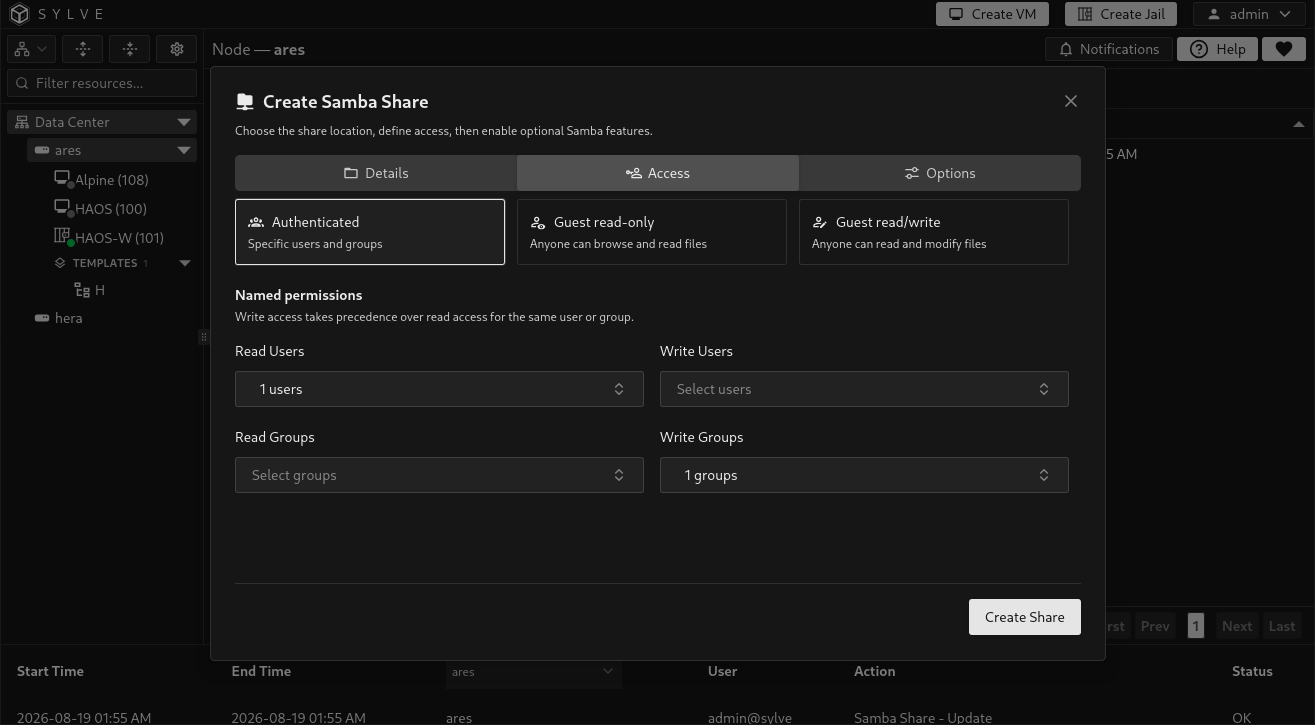
Section titled “Access”Choose one access mode. Authenticated access requires at least one selected user or group. Guest modes clear the effective named permissions for the share.
| Option | Behavior |
|---|---|
| Authenticated | Restricts access to the users and groups selected below. This is the appropriate choice for most private shares. |
| Guest read-only | Allows anyone to browse and read files without credentials. |
| Guest read/write | Allows anyone to read and modify files without credentials. Use only on a trusted network and a disposable or deliberately public dataset. |
| Read Users | PAM users with a Samba credential, granted read access. |
| Write Users | PAM users with a Samba credential, granted write access. Write access takes precedence, so a user in both lists is kept only as a writer. |
| Read Groups | Local Sylve groups granted read access. |
| Write Groups | Local Sylve groups granted write access. Write access takes precedence, so a group in both lists is kept only as a writer. |
Options
Section titled “Options”Use this tab for Apple Time Machine support, per-share auditing, and default permissions for newly created files and directories.
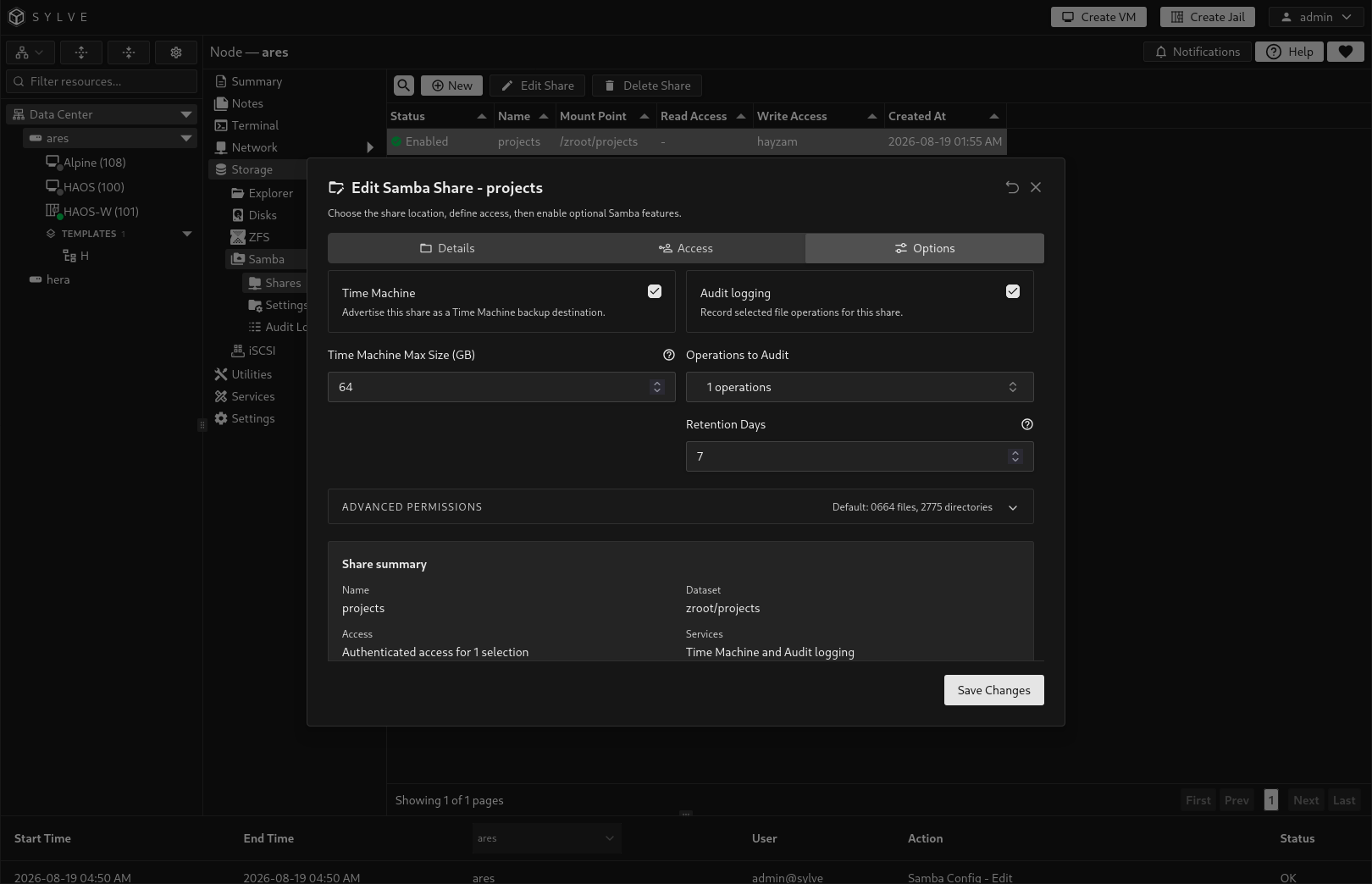
| Option | Behavior |
|---|---|
| Time Machine | Advertises this share as an Apple Time Machine destination. It is available only when Apple Extensions is enabled in Samba Settings. |
| Time Machine Max Size (GB) | Maximum Time Machine backup size in whole gigabytes. 0 means no limit. Available when Time Machine is enabled. |
| Audit logging | Enables recording of selected SMB operations for this share. |
| Operations to Audit | Choose one or more of connect, disconnect, create_file, mkdirat, unlinkat, renameat, openat, close, read, and write. At least one operation is required when audit logging is enabled. |
| Retention Days | How long Sylve keeps this share’s audit records. Default: 70. Enter a whole number of days, or 0 to retain records indefinitely. Changing it on an existing share also updates the retention applied to its existing records. |
| Create Mask | Four octal digits controlling permissions for new files. Default: 0664. |
| Directory Mask | Four octal digits controlling permissions for new directories. Default: 2775, which preserves the shared group on child directories. |
| Extra Share Configuration | Raw Samba directives appended after Sylve-managed settings. Enter one directive per line without a section header. Checked with testparm before saving, including for disabled shares. |
Extra share configuration
Section titled “Extra share configuration”Use Options → Extra share configuration for Samba settings that Sylve does not expose. For example:
smb encrypt = requiredLeave the field empty to use only Sylve-managed settings. API clients can set extraShareConfig when creating or updating a share; omitting it on update preserves the saved text, while an empty string clears it. Configuration text is redacted from request audit logs.
Extra directives can override the share path, access rules, VFS modules, and other generated settings. Sylve’s Access controls and filesystem ACL management remain unchanged; authenticated shares still require at least one managed principal. AD group rules such as valid users = "@EXAMPLE\Share Users" require domain membership, Winbind identity mapping, and filesystem permissions to be configured separately.
Discovery and Time Machine advertising
Section titled “Discovery and Time Machine advertising”When Advertise Samba (mDNS) is enabled in Samba Settings and at least one share is enabled, Sylve’s mDNS service advertises the SMB server as _smb._tcp on port 445. With Apple Extensions enabled, it also advertises Apple device information. Each enabled share with Time Machine enabled is included in the _adisk._tcp advertisement, allowing compatible Apple devices to discover it as a backup destination.
Sylve rebuilds its managed mDNS records after a share is created, updated, deleted, enabled, or disabled. These Samba-generated records are managed by Sylve and are not editable as custom mDNS records.
Edit or delete a share
Section titled “Edit or delete a share”Select one share and choose Edit Share to change its dataset, status, access mode, principals, or options. Changing the dataset removes Sylve-managed Samba access entries from the old mounted dataset and applies the intended access to the new one.
Choose Delete Share to remove the share configuration. It does not delete the underlying ZFS filesystem or its data.