

Creation
Select Create VM from the Virtual Machines page to open the creation wizard. It creates the VM definition, its initial storage when requested, and any selected network or PCI assignments in one operation.
Before starting, make sure the destination node has a suitable ZFS pool. A switch is optional, but a cloud-init guest usually needs one to reach its network services on first boot.
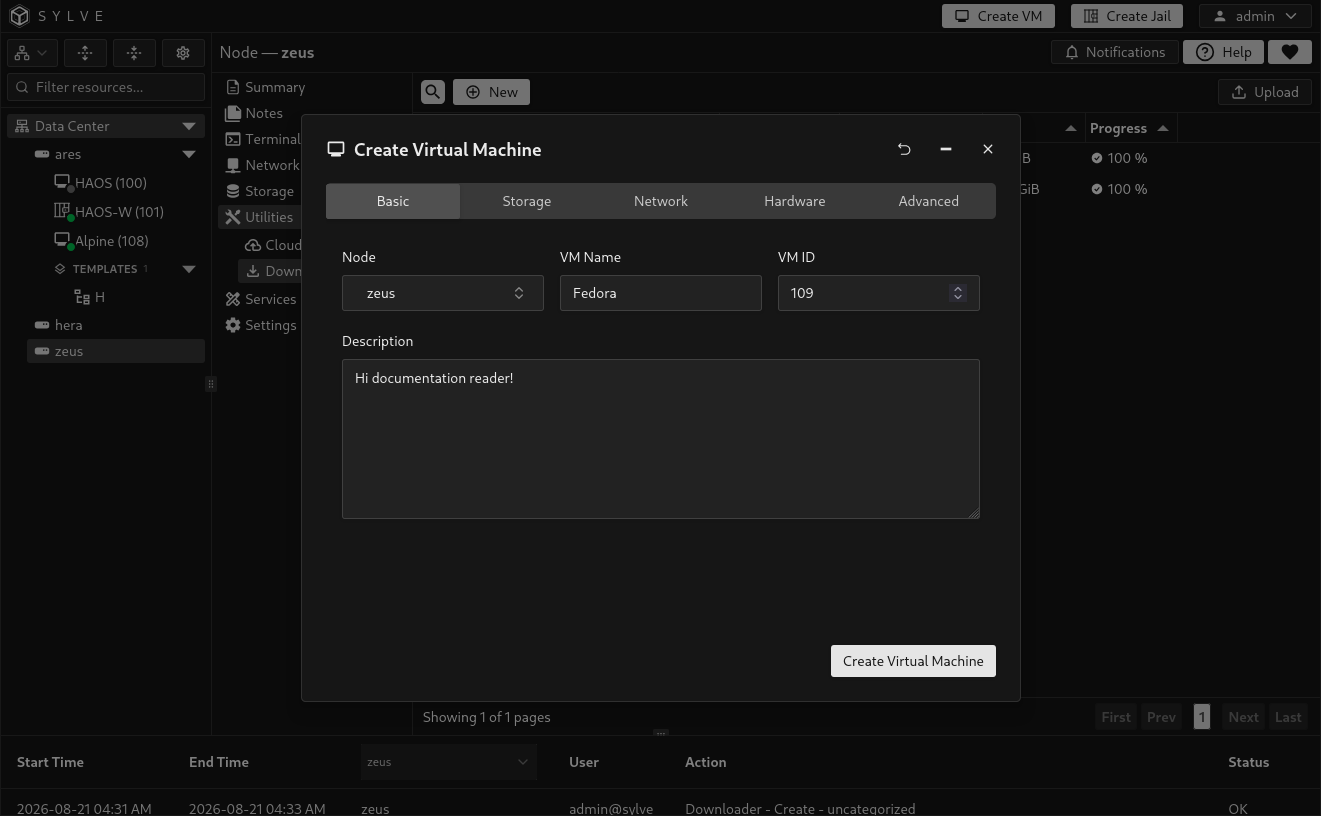
Choose where the VM belongs and give it an identity that is easy to recognize later.
| Field | Purpose |
|---|---|
| Node | The node that will own the VM. This appears when creating from a cluster view. Changing the node clears node-specific selections such as pools, switches, passthrough devices, and CPU pins. |
| VM Name | A human-readable, valid VM name. |
| VM ID | A numeric guest identifier from 1 to 9999. Sylve suggests the next available value and verifies that it does not conflict with a VM or jail anywhere in the cluster. |
| Description | Optional context for operators, such as the guest’s role, owner, or intended workload. |
Storage
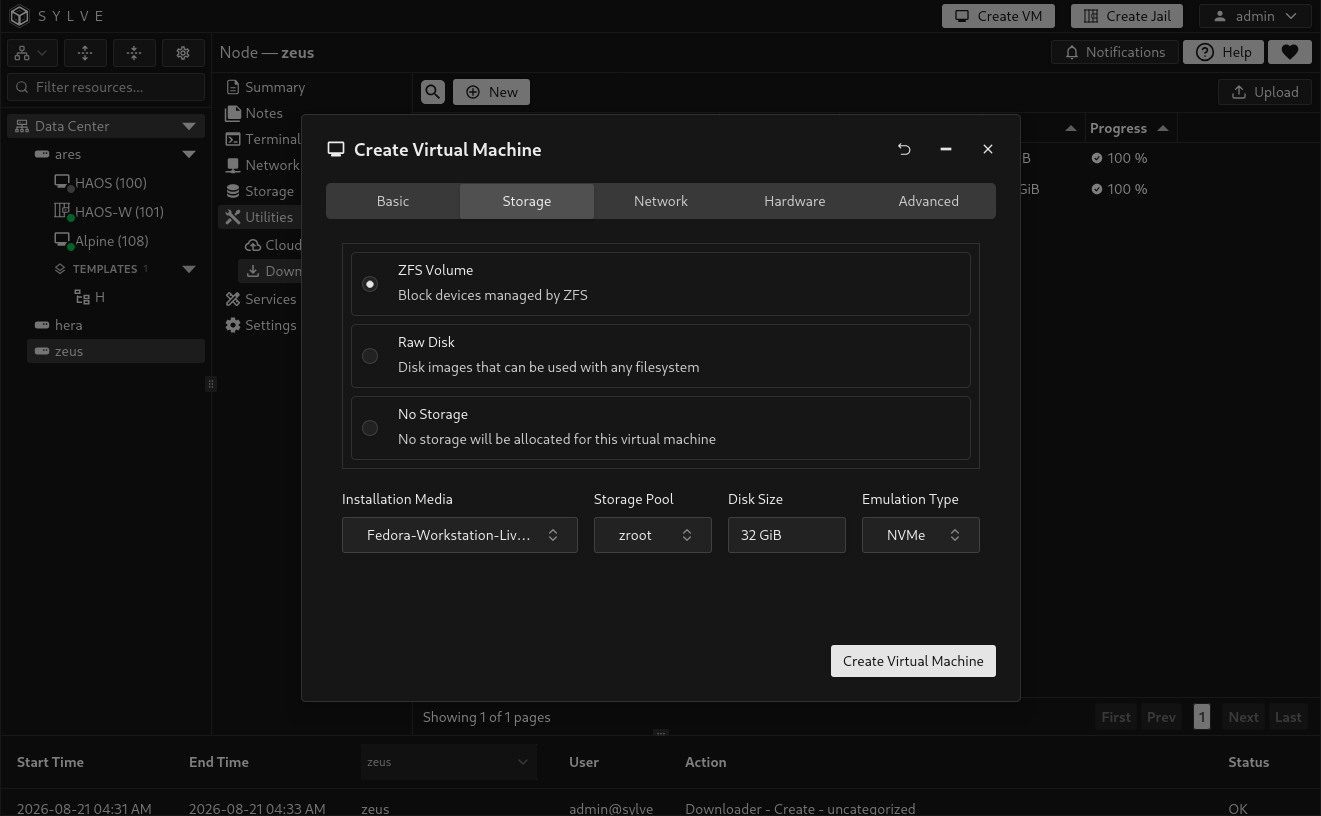
Section titled “Storage”Storage is the VM’s primary boot disk. Select a pool, its size, and the device model presented to the guest. The wizard also lets you attach one installation image.
| Type | Use it when | Result |
|---|---|---|
| ZFS Volume | You want a ZFS-managed virtual disk. This is the normal choice for Sylve-managed VM storage. | Creates a ZFS zvol in the selected pool. |
| Raw Disk | You specifically need a file-backed disk image. | Creates a raw disk image in the selected pool. |
| No Storage | The VM will boot from a later-attached disk, network source, or another device. | Creates no primary disk. |
The minimum initial disk size is 128 MiB. Sylve checks that the selected pool exists, is usable, and has enough free space before creating the VM. If the Storage Pool list is empty, create or import a ZFS pool on the selected node first.
For Emulation Type, choose the guest-visible disk controller:
| Emulation | Guidance |
|---|---|
| NVMe | A good default for modern guests with NVMe support. |
| VirtIO | A paravirtualized disk controller for guests with VirtIO drivers. |
| AHCI-HD | A compatibility-oriented SATA controller for guests that need it. |
Under Installation Media, select an available download or explicitly choose None. Regular ISO and supported disk-image downloads are available for ordinary installs. If the list does not contain the image you need, add it through Downloader, then return to this wizard. When cloud-init is enabled in the Advanced tab, this list is limited to downloads marked as cloud-init images.
Network
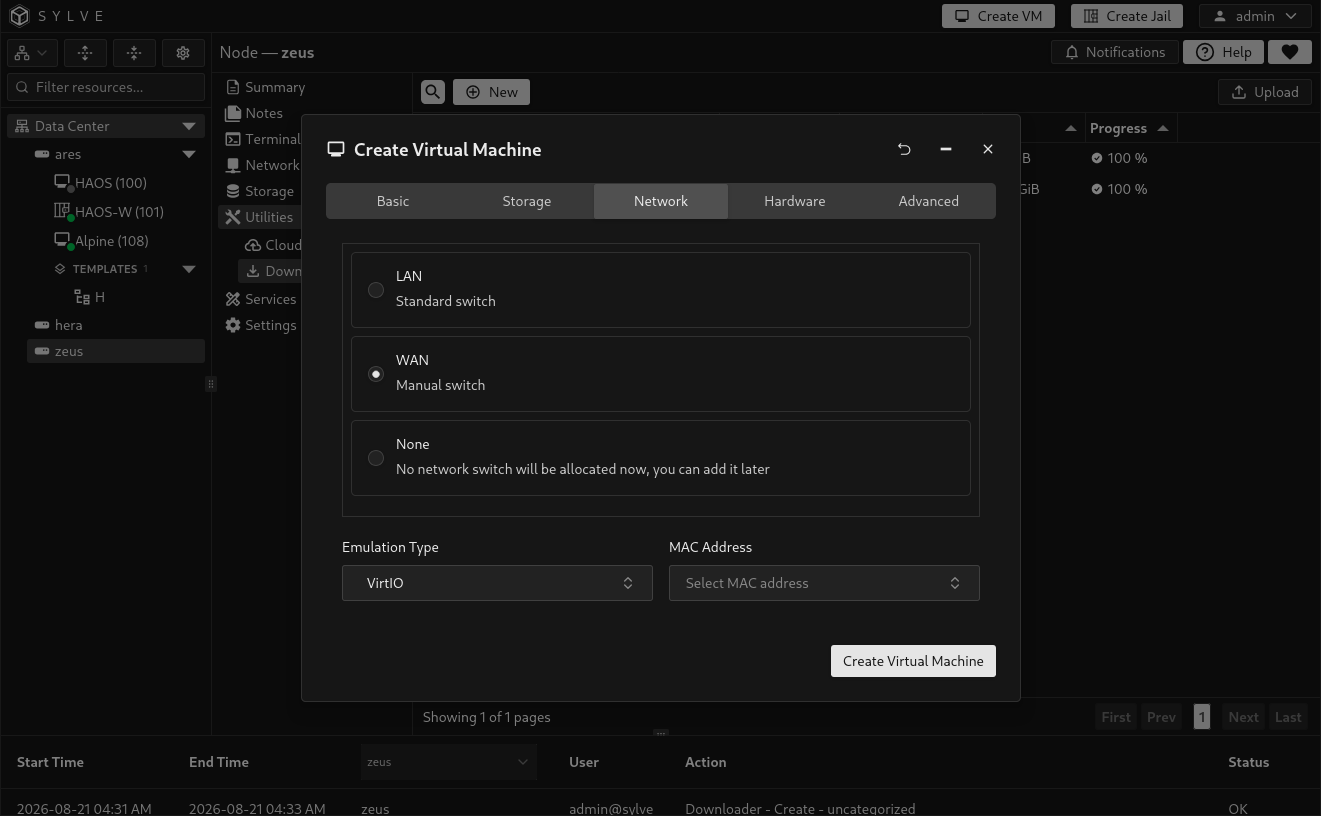
Section titled “Network”Attach the VM to a Standard or Manual switch so it can communicate on that network. A Standard Switch is a Sylve-managed FreeBSD bridge, normally connected to a physical interface; a Manual Switch represents a bridge you manage yourself. Leave the switch set to None when the VM should initially have no virtual NIC.
| Field | Purpose |
|---|---|
| Switch | The existing Standard or Manual switch connected to this NIC. |
| Emulation Type | VirtIO for guests with VirtIO network drivers, or E1000 for broader out-of-the-box compatibility. |
| MAC Address | An unused managed MAC object to assign to the NIC. Leave it unselected for Sylve to generate and attach a unique managed MAC address. |
The selected MAC address cannot already belong to another network interface. Select a reusable managed MAC only when you deliberately need that address on this VM. If the Switch list is empty, create a Standard Switch or Manual Switch first. To pre-create a managed MAC address, use Network Objects.
Hardware
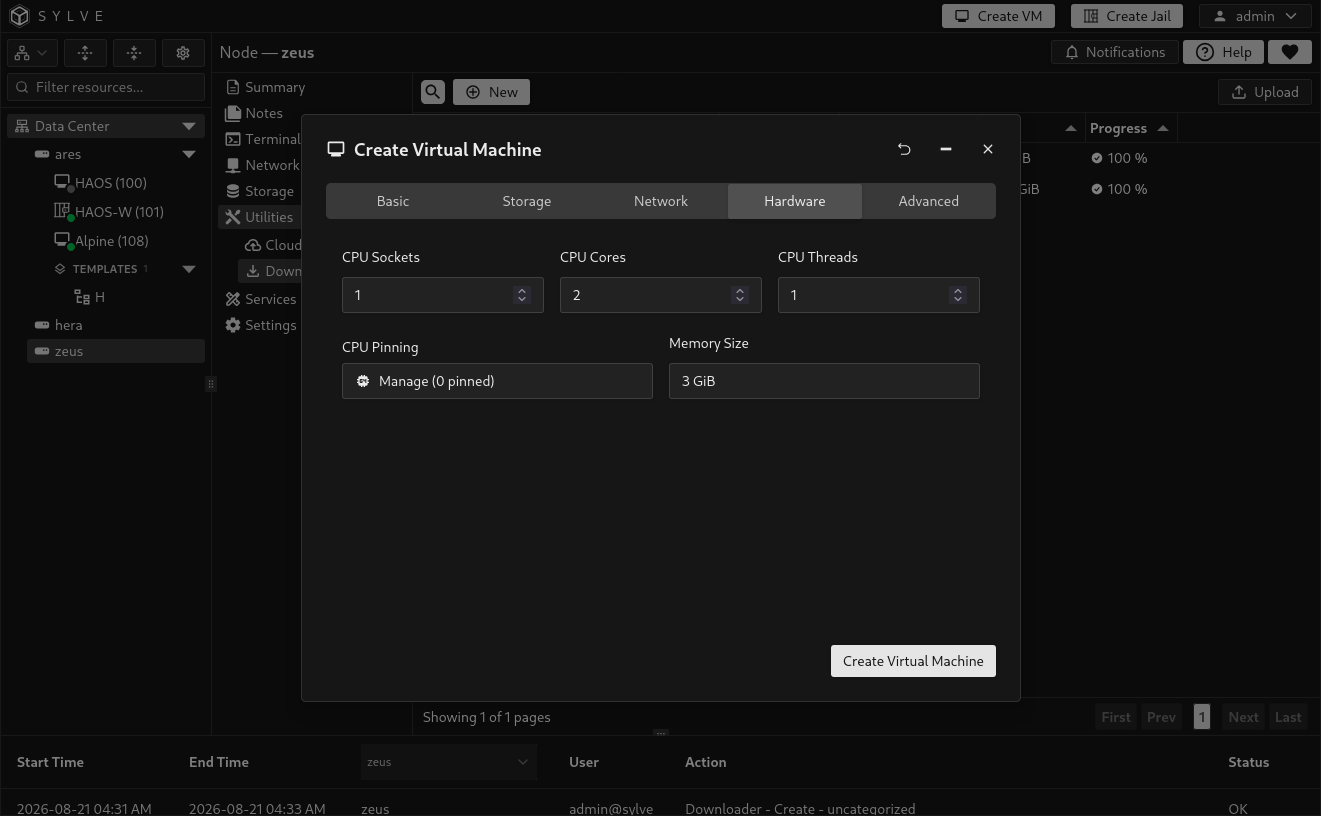
Section titled “Hardware”Set the CPU topology and memory allocation for the guest. Each CPU field must be at least one, so one socket, one core, and one thread creates a single vCPU.
| Field | Purpose |
|---|---|
| CPU Sockets, Cores, and Threads | Defines the topology reported to the guest. Their product is the VM’s vCPU count. |
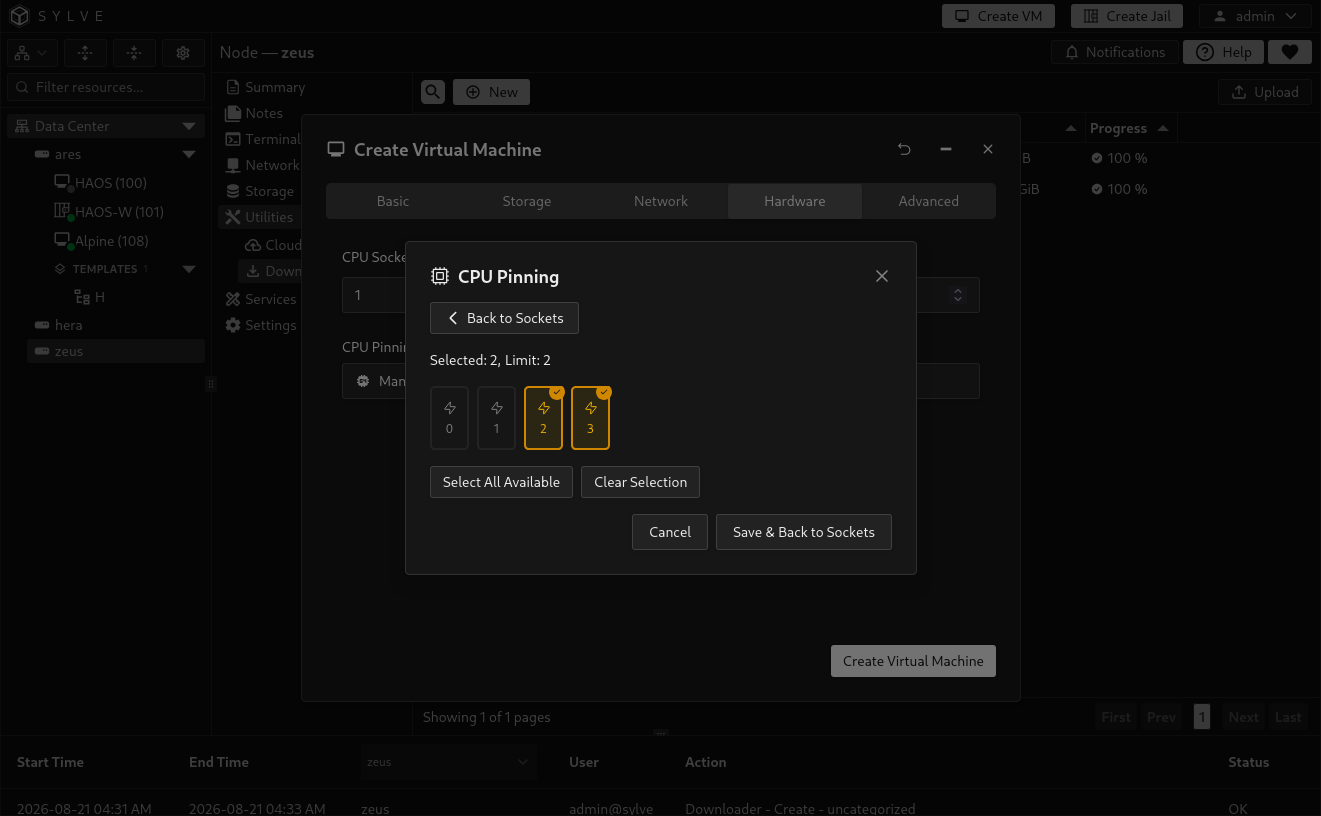
| CPU Selector | Optionally pins guest vCPUs to specific host CPU threads. |
| Memory Size | Guest RAM allocation. The minimum is 128 MiB. Leave sufficient memory for FreeBSD, ZFS, and other workloads on the node. |
| PCI Passthrough | Assigns prepared PCI devices to the VM. Only devices prepared in the node’s PCI Passthrough settings appear here. |
CPU pinning is optional. Sylve rejects duplicate selections, pins outside the VM’s configured vCPU count, pins beyond the host’s logical CPUs, and pins already reserved by another VM. Use it when you need predictable CPU placement, not as a requirement for normal VMs.
PCI devices may be selected by more than one VM definition, but only one running VM can use a device at a time. If the PCI list is empty, prepare the device for PCI passthrough and restart the node before relying on it for a guest.
Advanced
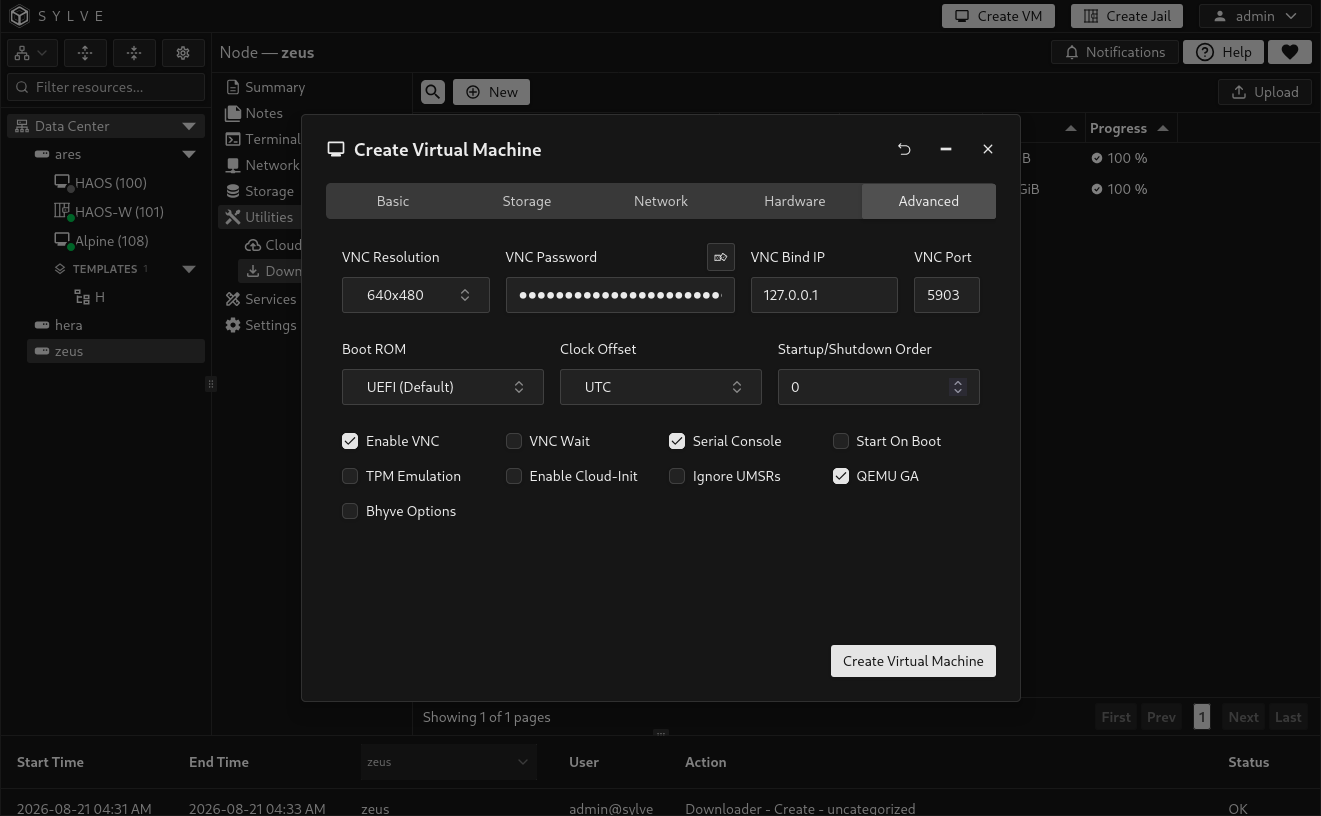
Section titled “Advanced”The Advanced tab controls the VM console, boot firmware, startup behavior, and optional guest integrations.
| Setting | Purpose |
|---|---|
| Enable VNC | Enables the graphical VNC console. Set its resolution, bind IP, port, and password here. The password generator creates a strong value that you can replace. |
| VNC Wait | Makes the VM wait for a VNC framebuffer connection during startup. |
| Serial Console | Provides a serial console for guests configured to use one. |
| Boot ROM | Firmware choices follow the selected node’s architecture: UEFI (Default) on amd64, U-Boot (Default) on arm64, or None when the guest does not need Sylve-managed firmware. The wizard waits until it can determine the node architecture before enabling creation. |
| Clock Offset | Presents the guest RTC as UTC or Local Time. Choose the convention expected by the guest operating system. |
| Start On Boot | Starts the VM automatically when its node starts. |
| Startup/Shutdown Order | Sets the relative order used for managed startup and shutdown. |
| TPM Emulation | Adds an emulated TPM for guests that require it. |
| Ignore UMSRs | Instructs Bhyve to ignore unimplemented model-specific-register accesses. Use this only for a guest that needs it, since it can conceal a compatibility issue. |
| QEMU GA | Enables the QEMU Guest Agent connection for compatible guests, allowing Sylve to obtain guest details such as operating-system and network information. |
| Bhyve Options | Adds extra Bhyve arguments, one per line. Use only options you understand and have tested for the guest. |
Cloud-init
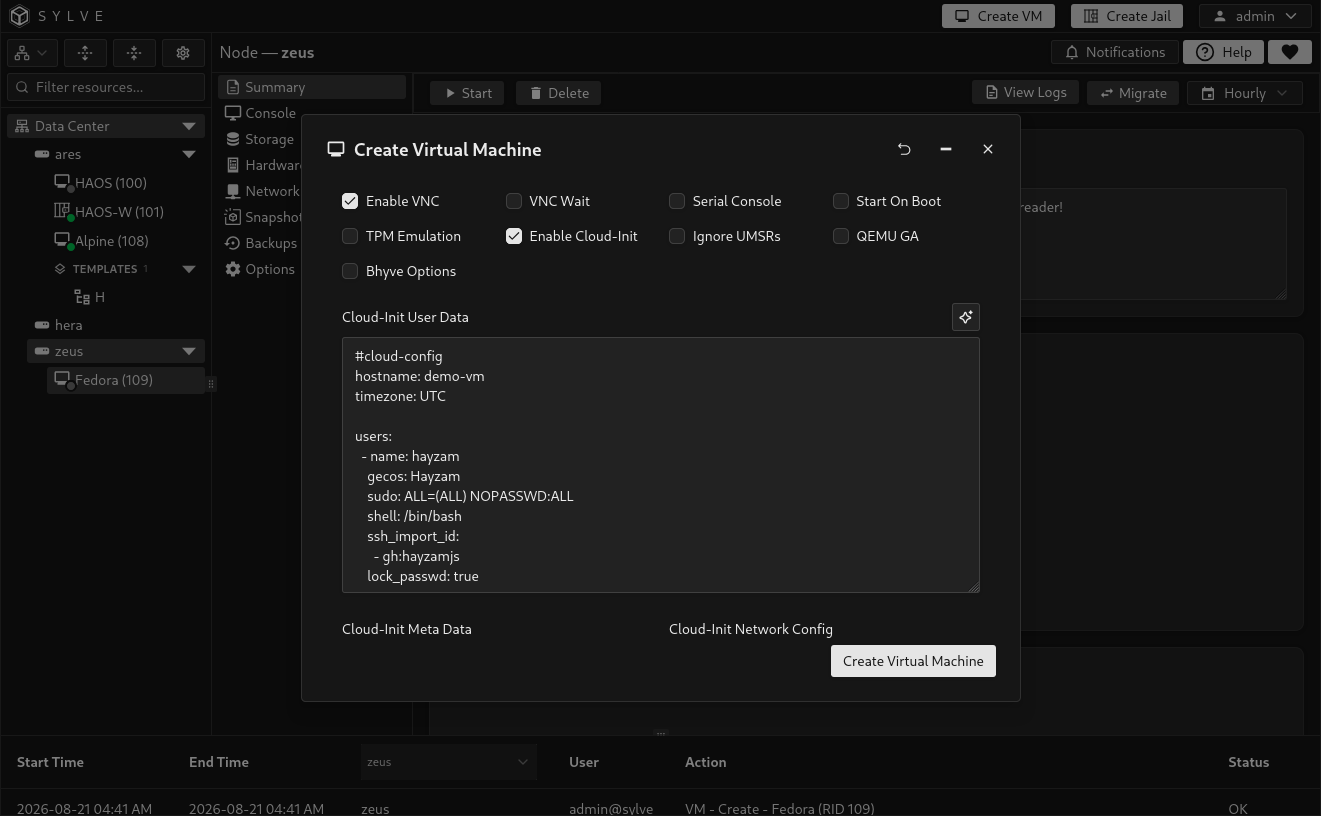
Section titled “Cloud-init”Enable Cloud-Init to initialize a compatible cloud image without performing a manual installer workflow. The wizard requires both User Data and Meta Data. Network Config is optional.
You can type the YAML directly or select an existing Cloud-Init template to populate all three fields. Return to the Storage tab afterwards and choose the cloud-init image that the guest will boot from. If no suitable image is available, use Downloader to add one marked as a cloud-init image.
Cloud-init is useful for creating repeatable guests, such as an application node with a known user, SSH keys, packages, and first-boot configuration.
Finish creation
Section titled “Finish creation”Review the information in each tab, then select Create. Sylve validates the VM identity, pool capacity, selected network and MAC address, CPU placement, VNC settings, cloud-init data, and passthrough mappings before making changes.
After creation, open the VM from the sidebar to review its configuration and start it when you are ready.