
Summary
The Summary page is the operational view for one virtual machine. It combines its current runtime state, resource use, recent telemetry, guest-agent details, logs, and lifecycle actions.
Status and resource use
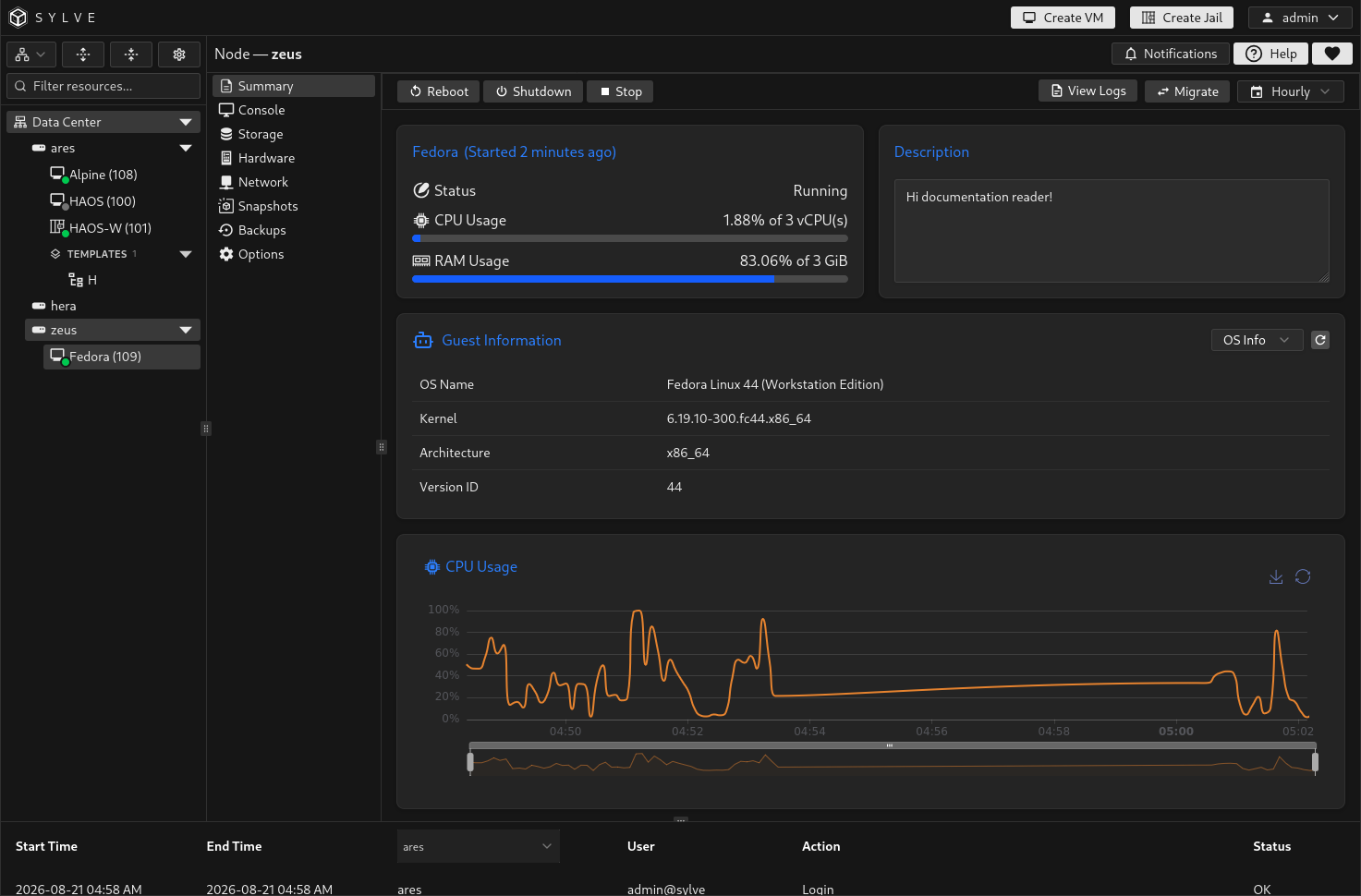
Section titled “Status and resource use”The upper-left card shows the VM’s current status, allocated vCPU count, configured memory, and current CPU and RAM use. CPU and memory use are zero while the VM is stopped. When the VM is running, the progress bars and charts use collected telemetry.
Use the time-range control in the toolbar to change the history displayed by the CPU Usage and Memory Usage charts:
| Range | Best for |
|---|---|
| Hourly | Recent activity and short-lived spikes. |
| Daily | Behaviour over the current day. |
| Weekly, Monthly, or Yearly | Capacity trends and recurring workload patterns. |
An empty chart can mean that the VM has not produced telemetry for the selected period yet. Use the retry action shown by the chart if telemetry could not be loaded.
The VM name can be edited from the pencil icon beside the name. The Description card is an editable operator note, useful for recording the workload, owner, or a maintenance reminder.
Start, stop, and reboot
Section titled “Start, stop, and reboot”The toolbar only shows actions that make sense for the VM’s current state.
| Action | What it does |
|---|---|
| Start | Starts a stopped VM. |
| Shutdown | Requests a graceful guest shutdown. Use this whenever the guest operating system is healthy. |
| Stop | Stops the VM without waiting for a graceful guest shutdown. Use it only when a graceful shutdown is not suitable. |
| Force Stop | Becomes available while a shutdown is in progress when the VM must be stopped immediately. This can risk guest filesystem consistency. |
| Reboot | Requests a VM reboot. |
| Migrate | Opens the migration workflow when another eligible online cluster node is available. See Migration for prerequisites, downtime, and target-specific caveats. |
Lifecycle operations are queued jobs. While one is active, Sylve shows its progress and prevents conflicting lifecycle actions until it completes. A VM protected by replication can only be controlled by the node that owns its current replication lease.
Logs and migration
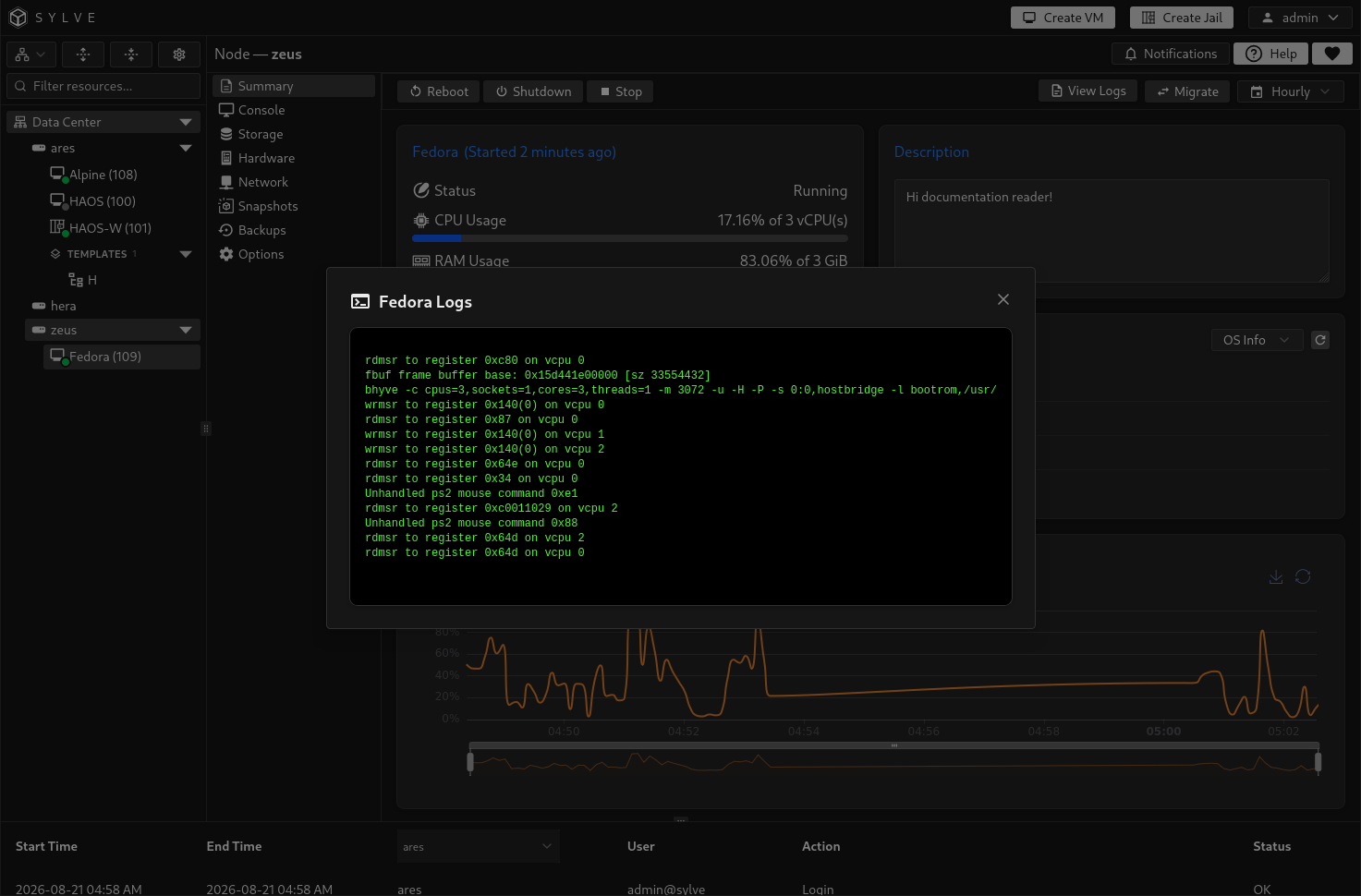
Section titled “Logs and migration”Select View Logs in the toolbar to open the VM log viewer. It follows the newest output when opened, which is useful while diagnosing a failed start or watching an action complete.
Migrate appears only when the cluster has another eligible online node and the VM is not in an orphaned state. The migration dialog validates the move before it starts. Do not begin another lifecycle operation while migration is active.
Guest information
Section titled “Guest information”When QEMU GA is enabled for the VM and a compatible QEMU Guest Agent is installed and running inside the guest, the Guest Information card appears below the summary cards.
| View | Information shown |
|---|---|
| OS Info | The guest’s operating-system name, kernel release, architecture, and version ID. |
| Network | Guest-reported interfaces, MAC addresses, IP addresses, and received and transmitted byte counters. |
Use the refresh button in the card to request new guest-agent data. A Stale Cache label means Sylve is temporarily showing the most recently known response because the newest request did not succeed. If the guest is running but the agent cannot be reached, the page identifies it as unavailable.
To enable this feature for a VM, use VM Options to enable QEMU GA, then install and start the matching guest agent in the operating system.
Delete and recovery states
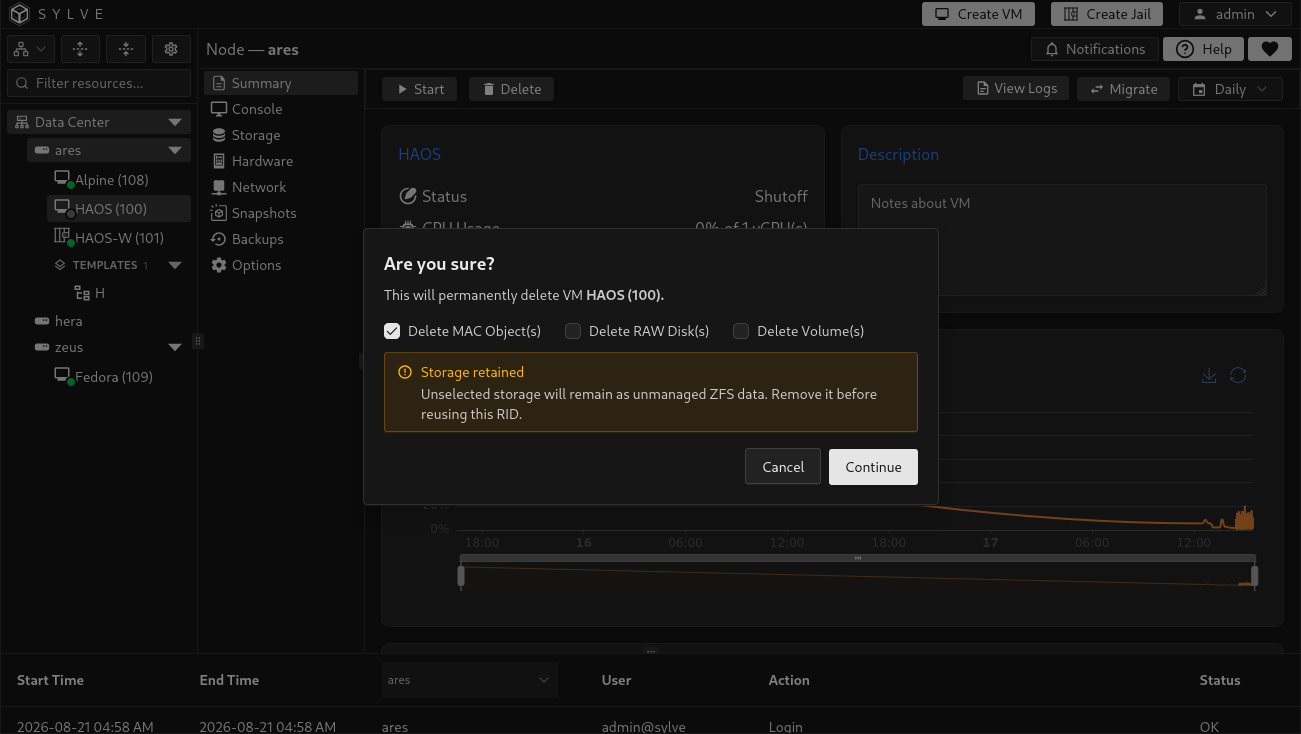
Section titled “Delete and recovery states”Select Delete for a stopped VM to open its removal confirmation. Choose whether Sylve should also delete the VM’s managed MAC objects, raw disks, and ZFS volumes.
Deletion is rejected while any backup job or replication policy still references the VM, including disabled jobs or policies. Delete those jobs and remove the replication policy before deleting the guest so a future workload cannot inherit its backup or replication identity.
If you leave raw disks or volumes unselected, Sylve retains them as unmanaged ZFS data. Remove or reconcile that storage before reusing the same VM ID, otherwise it can conflict with the new VM’s expected dataset layout.
When every child storage dataset under a selected VM root is removed, Sylve also removes snapshots directly attached to that empty root before destroying it. Any storage that could not be removed is reported for manual cleanup.
An error state exposes Force Delete for best-effort cleanup. An orphaned state instead offers Remove stale entry, which removes only the local inventory and libvirt-domain record while preserving ZFS data and leaving other nodes untouched. Use these recovery actions only after confirming the VM’s actual state and storage location.