Templates
VM templates let you standardize an operating-system image and its Sylve configuration, then create new VMs from that known starting point. A template stores its own ZFS-backed copy of the source VM’s cloneable storage. The source VM stays intact, and VMs created later have their own independent storage datasets.
Prepare the source VM
Section titled “Prepare the source VM”Configure and test the VM as you want future VMs to begin. Install the operating system, apply updates, configure the boot disk and network interfaces, and optionally add Cloud-Init data.
Templates require at least one managed Raw Disk or ZFS Volume. Filesystem shares and other non-cloneable storage are not captured. Sylve also checks that the source pools have enough free space to store the template copy.
Convert a VM to a template
Section titled “Convert a VM to a template”Open the source VM’s actions and choose Convert to Template. Enter a unique template name, then confirm the conversion. The new template appears in the sidebar’s Templates section when its task completes.
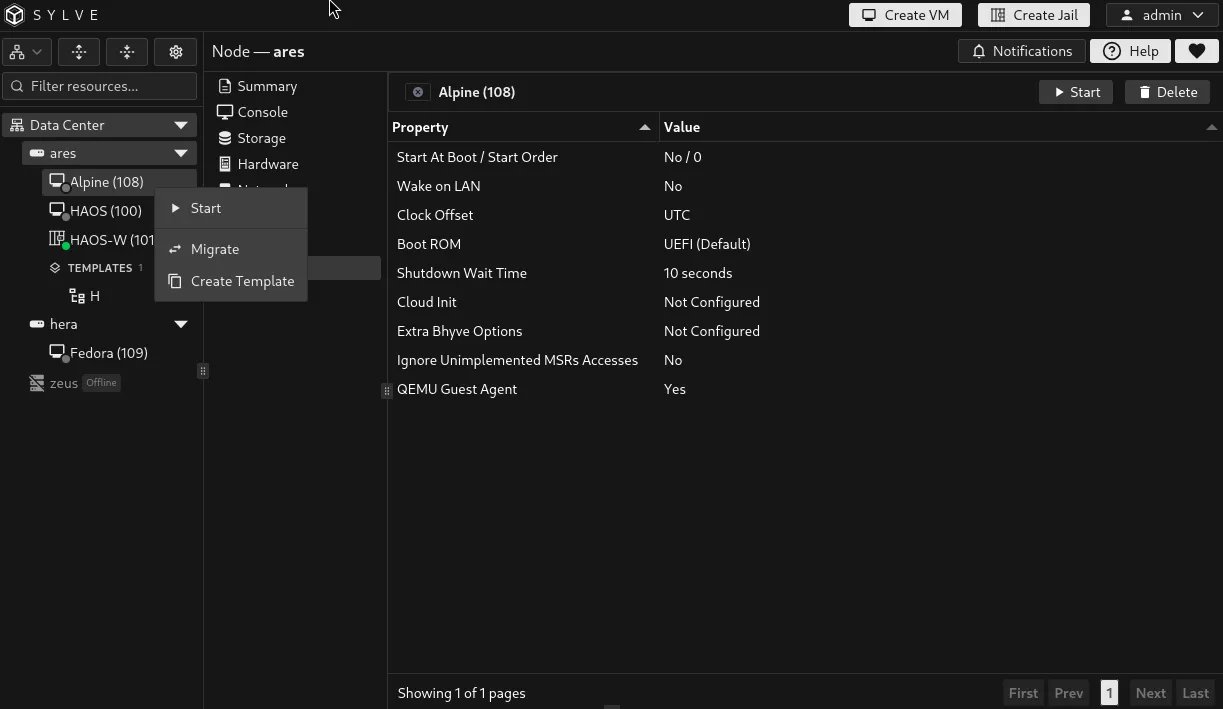
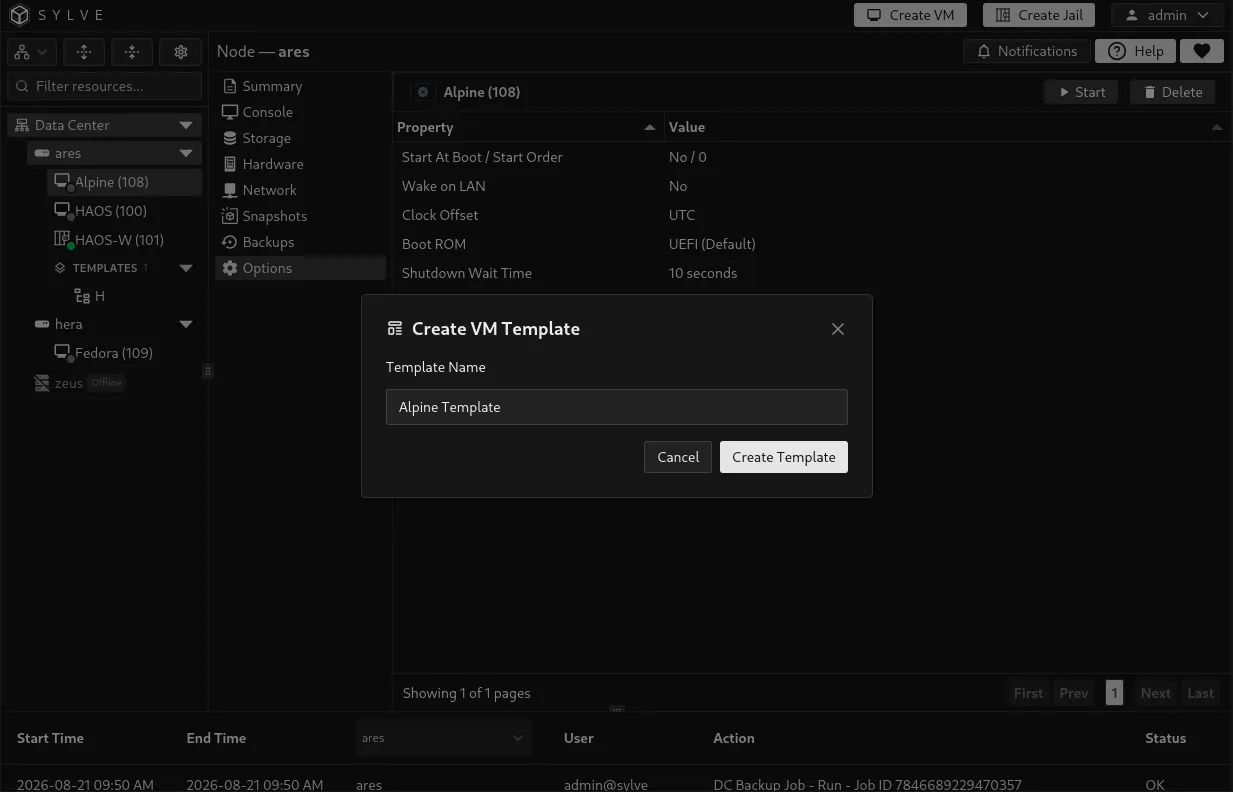
During conversion, Sylve copies each supported storage dataset to the template hierarchy on its original pool. The template is separate from the source VM, so you may keep, repurpose, or delete the original VM after checking that the template is usable.
What the template retains
Section titled “What the template retains”The template preserves the VM’s intended configuration, including CPU topology, RAM, storage layout and boot order, network switch connections and emulation, firmware, console configuration, Cloud-Init data, selected options, and supported device settings.
What each new VM receives instead
Section titled “What each new VM receives instead”Some values are intentionally regenerated or reset so copies do not conflict with the source or one another.
| Setting | Behavior for a VM created from the template |
|---|---|
| RID and name | New values chosen in the creation dialog. |
| Storage | New independent Raw Disk or ZFS Volume datasets, created from the template copy. |
| MAC addresses | New unique MAC objects for every template network interface. |
| VNC port and password | A new available port and a new generated password. |
| Start at Boot, Start Order, Wake on LAN | Reset to disabled, order 0, and disabled respectively. |
| CPU pinning and PCI passthrough assignments | Not carried over. Assign them deliberately to each new VM. |
| TPM and firmware runtime state | Fresh per-VM state. Do not expect enrolled TPM secrets or mutable firmware variables from the source VM to be reused. |
Inspect a template
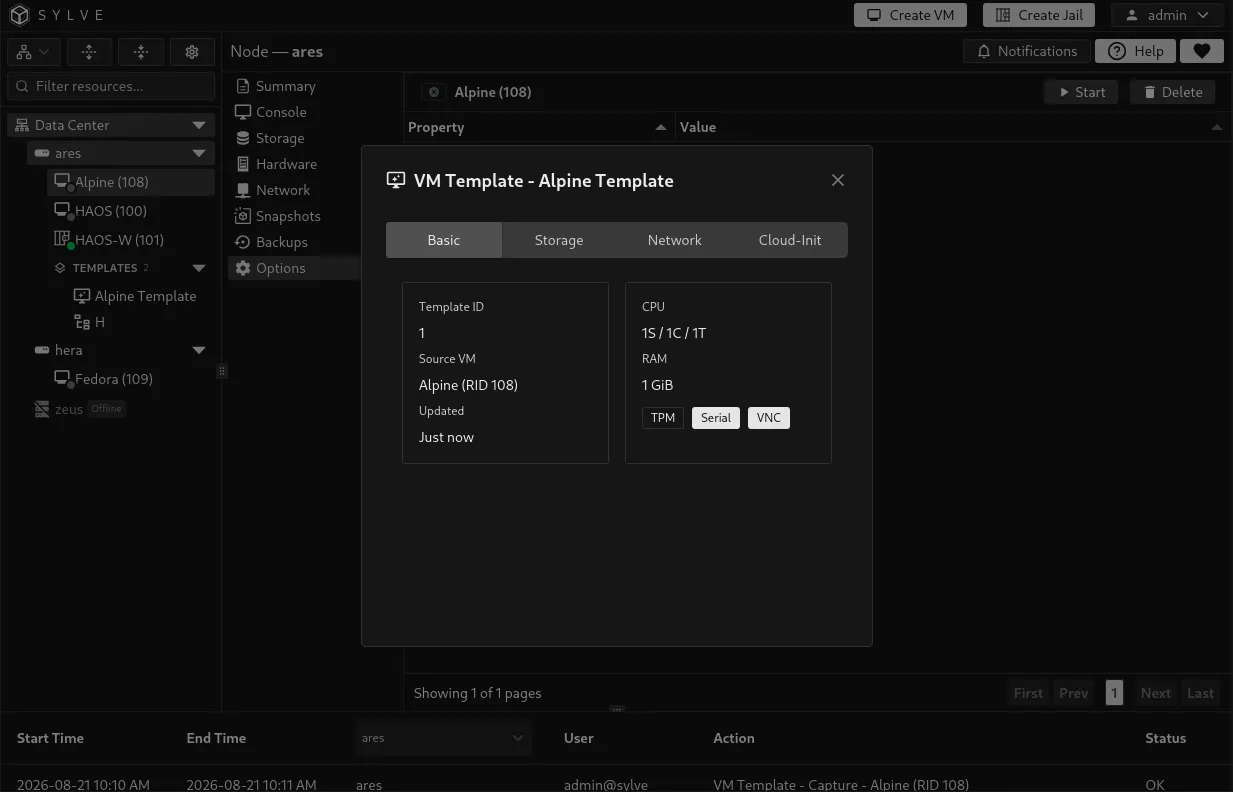
Section titled “Inspect a template”Open a template’s View action to check it before deploying from it. The dialog groups the retained configuration into Basic, Storage, Network, and Cloud-Init tabs.
Use this view to confirm the required disk layout and pool origin, that every required switch still exists, and that no credentials or machine-specific identity were accidentally left in Cloud-Init data.
Create VMs from a template
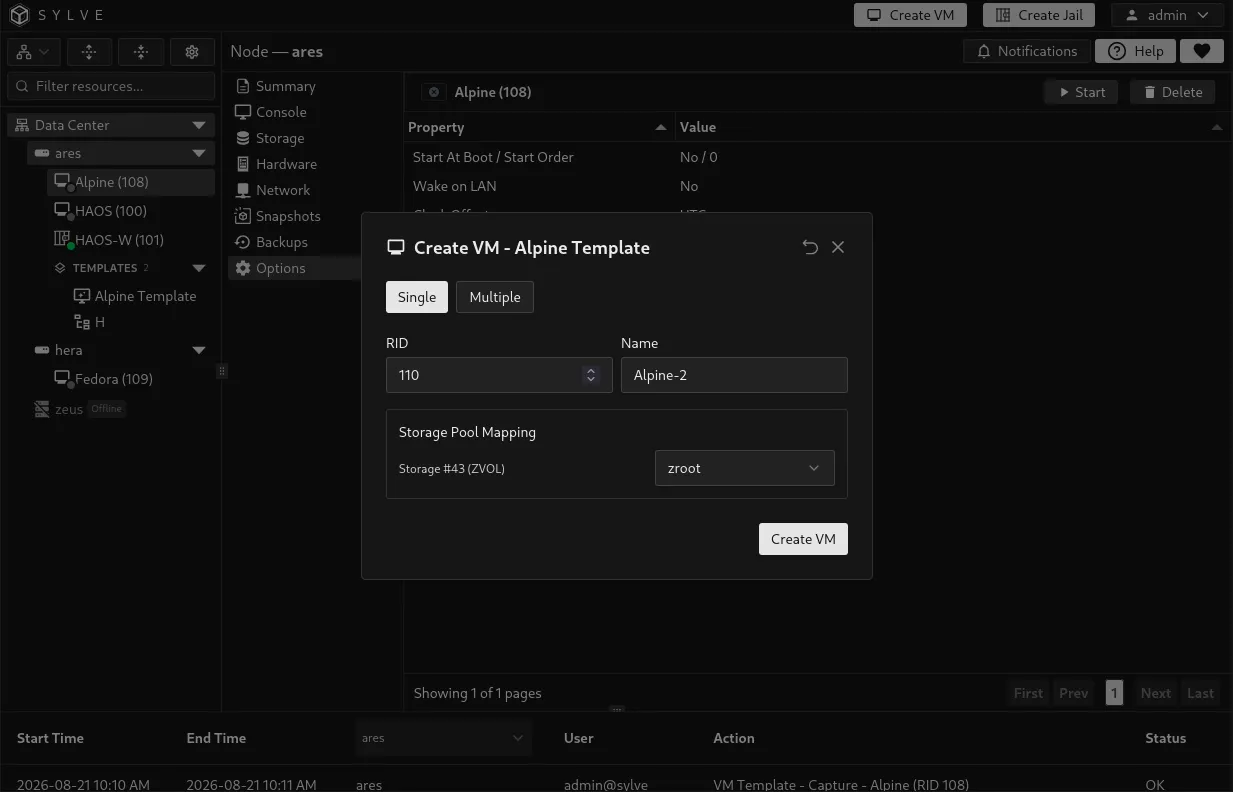
Section titled “Create VMs from a template”Choose Create VM on a template. The dialog loads the template and the node’s available ZFS pools, then offers Single and Multiple creation modes.
Single VM
Section titled “Single VM”Choose a unique RID, optionally set a name, and select a destination pool for every template storage item. Sylve suggests the original pool when it is available, but each disk can be mapped to a different available pool.
Multiple VMs
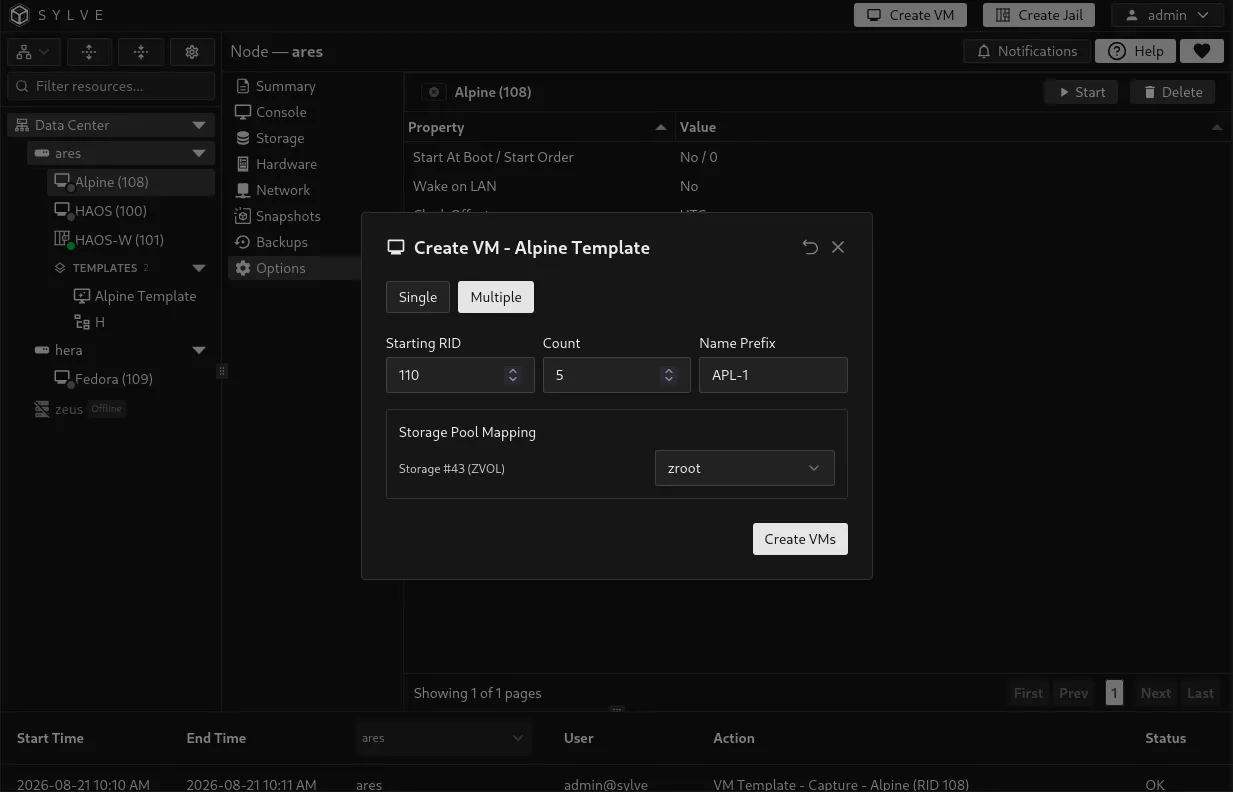
Section titled “Multiple VMs”Choose a Starting RID, a Count, and an optional Name Prefix. Sylve creates a consecutive RID range. A batch can contain up to 200 VMs, and every RID and generated name must be available before creation begins.
| Field | Description |
|---|---|
| RID / Starting RID | The one RID, or first RID in the consecutive range. RIDs must be from 1 to 9999. |
| Name / Name Prefix | An optional name for one VM, or prefix used to name every VM in a batch. |
| Count | Number of VMs in a multiple-creation batch, from 1 to 200. |
| Storage Pool Mapping | Destination ZFS pool for each Raw Disk or ZFS Volume in the template. |
Cloud-Init identity rewriting
Section titled “Cloud-Init identity rewriting”If the template contains Cloud-Init data, you can enable Rewrite cloud-init hostname + instance-id. Sylve updates the metadata identity for each created VM so Cloud-Init treats it as a new instance. An optional Identity Prefix lets you choose the generated hostname prefix.
Enable this when using a Cloud-Init image to create more than one instance. It avoids reusing the template’s machine identity and helps first-boot configuration run as expected.
Preflight checks and recovery
Section titled “Preflight checks and recovery”Before creating anything, Sylve checks the template storage datasets, selected pools and free capacity, RID and VM-name availability, and template network switches. If a check fails, no new VM is created. If a later creation step in a batch fails, Sylve cleans up VMs already created by that request.
Delete a template
Section titled “Delete a template”Deleting a template removes its template storage datasets and its template definition. It does not delete VMs that were previously created from it because their storage is independent. Keep the template while you need to create more identical VMs or retain it as a reusable golden image.