

Settings
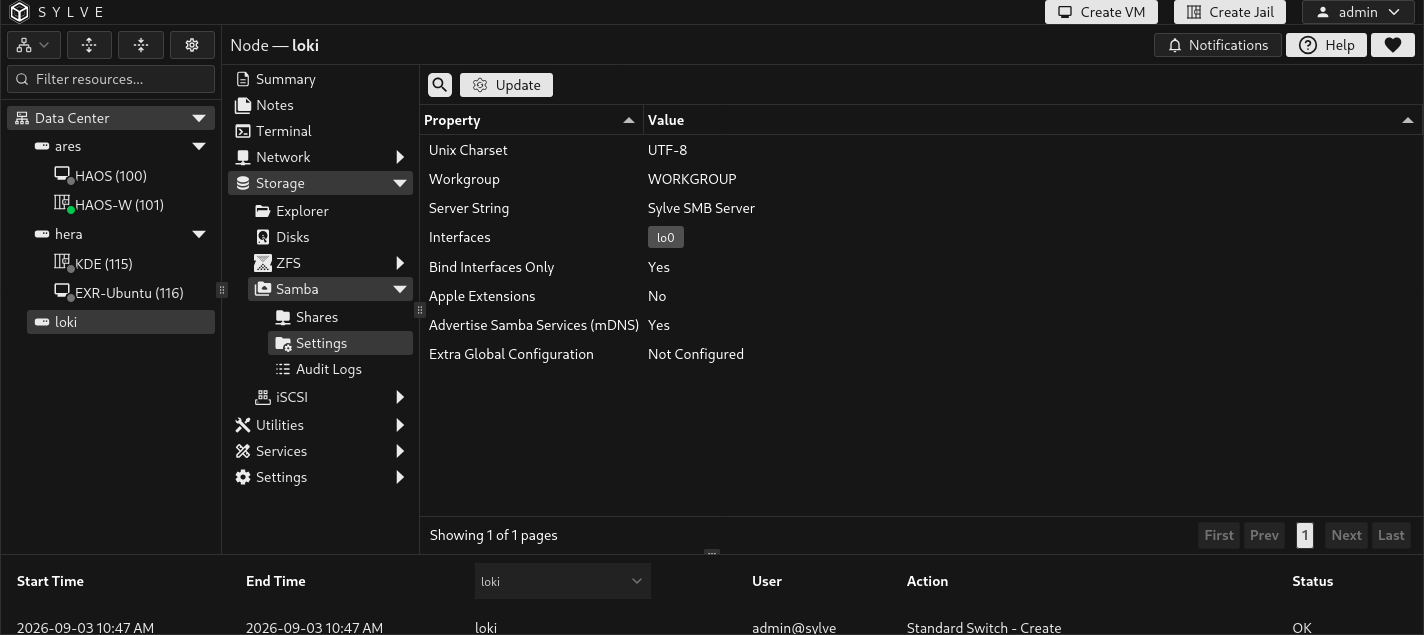
The Samba Settings page shows the active global configuration. Select Update to change it. These settings control the SMB server as a whole, while share-specific access and options are configured on the Shares page.
Update Samba settings
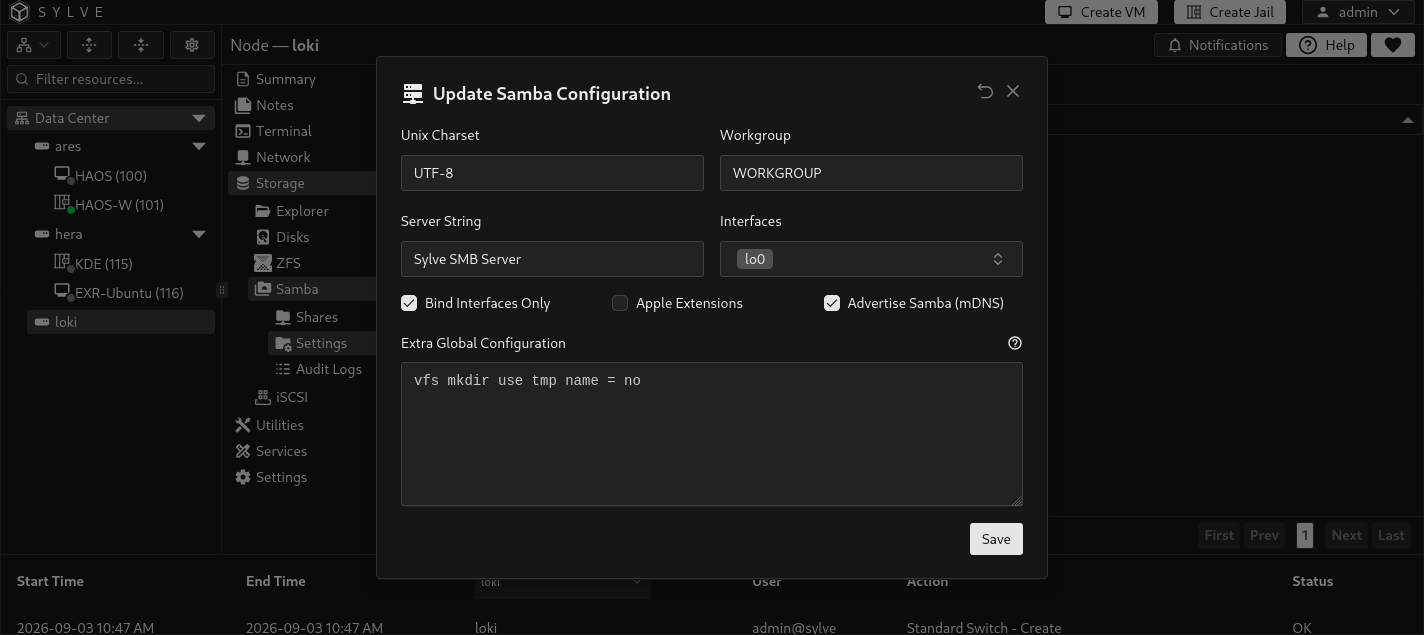
Section titled “Update Samba settings”Changing settings validates the requested values, rewrites the Samba configuration, and reloads Samba. If selected interfaces no longer exist, Sylve removes them from the saved selection. If no valid interface remains, it falls back to lo0.
| Option | Behavior |
|---|---|
| Unix Charset | Character encoding Samba uses for Unix filenames. Required and must be supported by the node. Default deployments normally use UTF-8. |
| Workgroup | SMB workgroup name announced by the server. Required and validated as a Samba workgroup name. Use the same value as Windows clients or your existing SMB environment when appropriate. |
| Server String | Human-readable server description presented to SMB clients. Required. It cannot contain line breaks or a null character. |
| Interfaces | Network interfaces Samba should use. Select one or more available non-TAP interfaces. Sylve saves their operating-system interface names, while the table shows a description when one is available. |
| Bind Interfaces Only | Restricts Samba to the selected interfaces. Enable this when the SMB service must not listen on other node interfaces. |
| Apple Extensions | Enables Apple-focused SMB extensions, including the fruit and streams_xattr modules on shares. It is required before a share can expose the Time Machine option. |
| Advertise Samba (mDNS) | Controls whether Sylve publishes its managed Samba discovery records through mDNS. When enabled, Sylve ensures the mDNS service is enabled and rebuilds the advertisements after saving. This is enabled by default. |
| Extra Global Configuration | Optional advanced Samba directives appended verbatim to the generated [global] section. Enter one directive per line. The Settings table reports only whether this field is configured. |